> ## Documentation Index
> Fetch the complete documentation index at: https://docs.crewai.com/llms.txt
> Use this file to discover all available pages before exploring further.
# Automations
> Manage, deploy, and monitor your live crews (automations) in one place.
## Overview
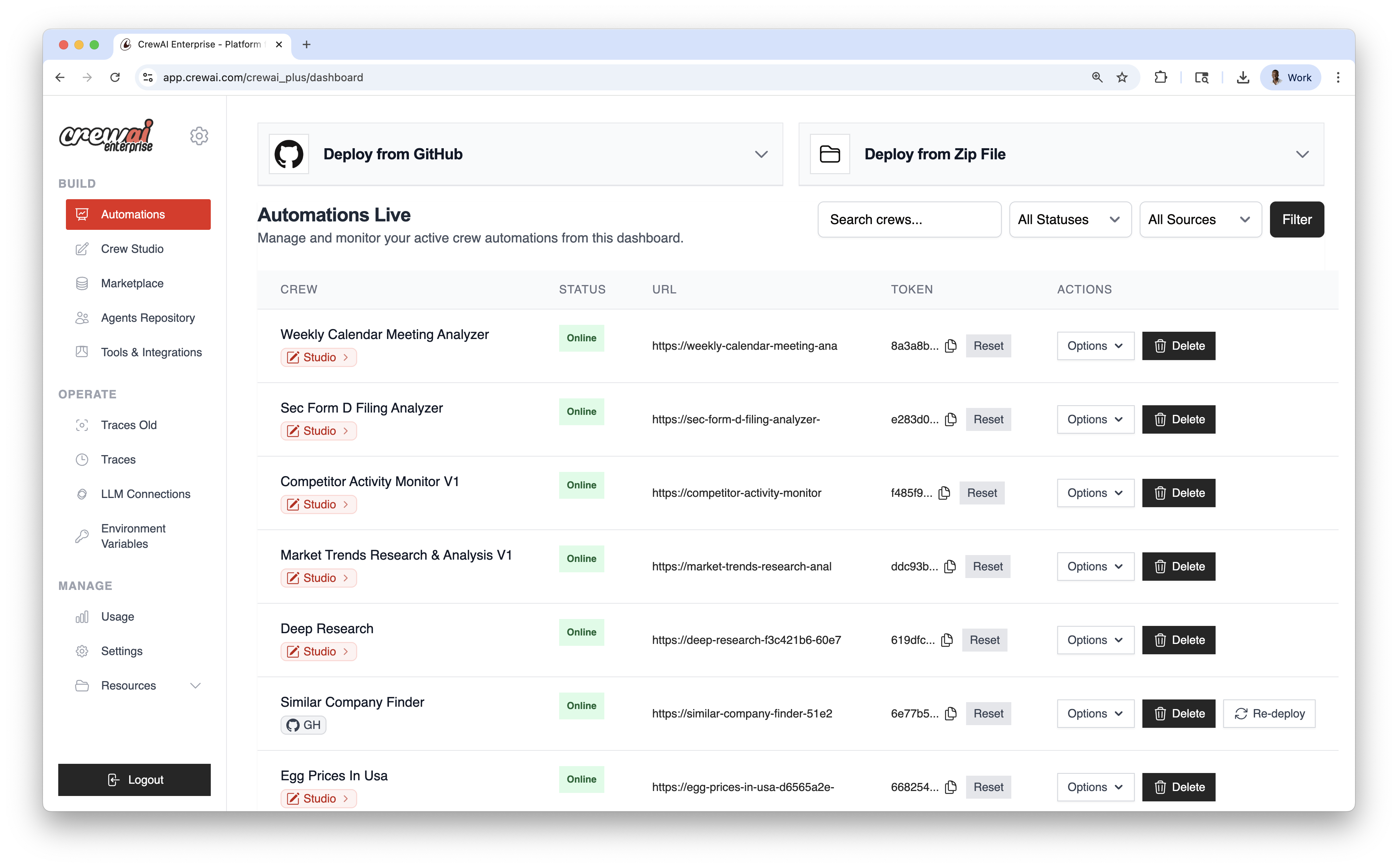
Automations is the live operations hub for your deployed crews. Use it to deploy from GitHub or a ZIP file, manage environment variables, re‑deploy when needed, and monitor the status of each automation.
 ## Deployment Methods
### Deploy from GitHub
Use this for version‑controlled projects and continuous deployment.
Click Configure GitHub and authorize access.
Choose the Repository and Branch you want to deploy from.
Turn on Automatically deploy new commits to ship updates on every push.
Add secrets individually or use Bulk View for multiple variables.
Click Deploy to create your live automation.
## Deployment Methods
### Deploy from GitHub
Use this for version‑controlled projects and continuous deployment.
Click Configure GitHub and authorize access.
Choose the Repository and Branch you want to deploy from.
Turn on Automatically deploy new commits to ship updates on every push.
Add secrets individually or use Bulk View for multiple variables.
Click Deploy to create your live automation.
 ### Deploy from ZIP
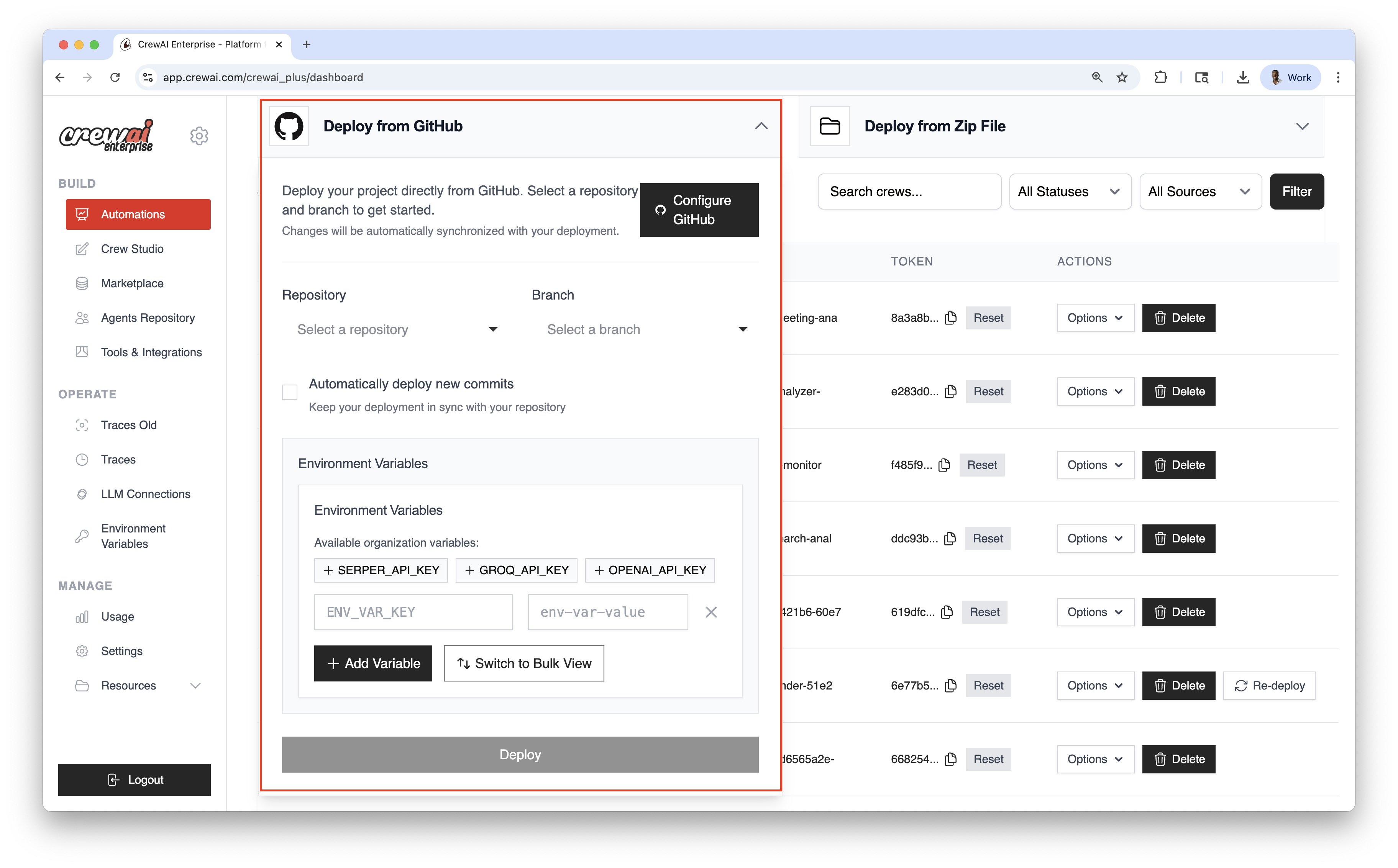
Ship quickly without Git—upload a compressed package of your project.
Select the ZIP archive from your computer.
Provide any required variables or keys.
Click Deploy to create your live automation.
### Deploy from ZIP
Ship quickly without Git—upload a compressed package of your project.
Select the ZIP archive from your computer.
Provide any required variables or keys.
Click Deploy to create your live automation.
 ## Automations Dashboard
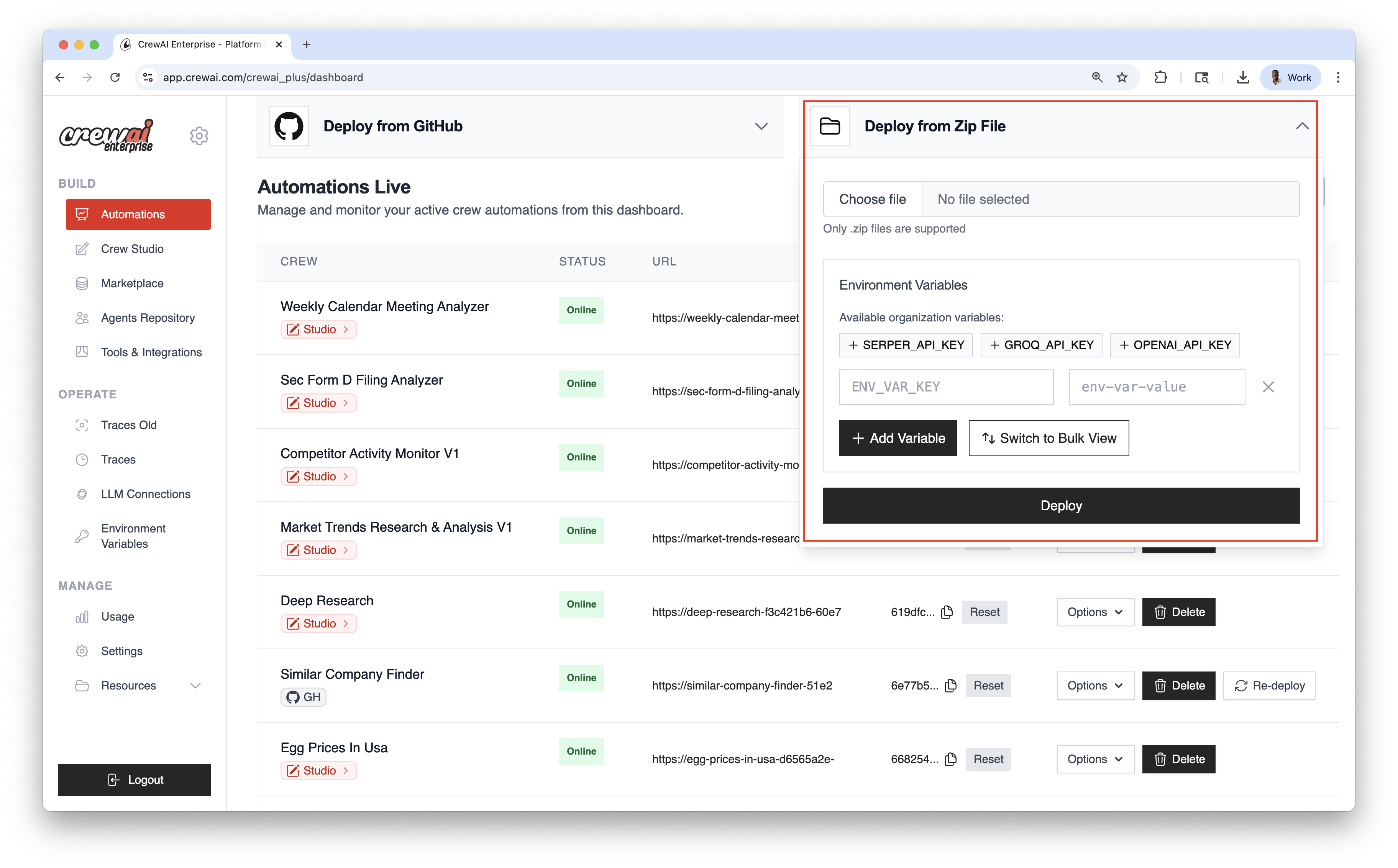
The table lists all live automations with key details:
* **CREW**: Automation name
* **STATUS**: Online / Failed / In Progress
* **URL**: Endpoint for kickoff/status
* **TOKEN**: Automation token
* **ACTIONS**: Re‑deploy, delete, and more
Use the top‑right controls to filter and search:
* Search by name
* Filter by Status
* Filter by Source (GitHub / Studio / ZIP)
Once deployed, you can view the automation details and have the **Options** dropdown menu to `chat with this crew`, `Export React Component` and `Export as MCP`.
## Automations Dashboard
The table lists all live automations with key details:
* **CREW**: Automation name
* **STATUS**: Online / Failed / In Progress
* **URL**: Endpoint for kickoff/status
* **TOKEN**: Automation token
* **ACTIONS**: Re‑deploy, delete, and more
Use the top‑right controls to filter and search:
* Search by name
* Filter by Status
* Filter by Source (GitHub / Studio / ZIP)
Once deployed, you can view the automation details and have the **Options** dropdown menu to `chat with this crew`, `Export React Component` and `Export as MCP`.
 ## Best Practices
* Prefer GitHub deployments for version control and CI/CD
* Use re‑deploy to roll forward after code or config updates or set it to auto-deploy on every push
## Related
Deploy a Crew from GitHub or ZIP file.
Trigger automations via webhooks or API.
Stream real-time events and updates to your systems.
## Best Practices
* Prefer GitHub deployments for version control and CI/CD
* Use re‑deploy to roll forward after code or config updates or set it to auto-deploy on every push
## Related
Deploy a Crew from GitHub or ZIP file.
Trigger automations via webhooks or API.
Stream real-time events and updates to your systems.