> ## Documentation Index
> Fetch the complete documentation index at: https://docs.crewai.com/llms.txt
> Use this file to discover all available pages before exploring further.
# Google Calendar Trigger
> Kick off crews when Google Calendar events are created, updated, or cancelled
## Overview
Use the Google Calendar trigger to launch automations whenever calendar events change. Common use cases include briefing a team before a meeting, notifying stakeholders when a critical event is cancelled, or summarizing daily schedules.
Make sure Google Calendar is connected in **Tools & Integrations** and enabled
for the deployment you want to automate.
## Enabling the Google Calendar Trigger
1. Open your deployment in CrewAI AMP
2. Go to the **Triggers** tab
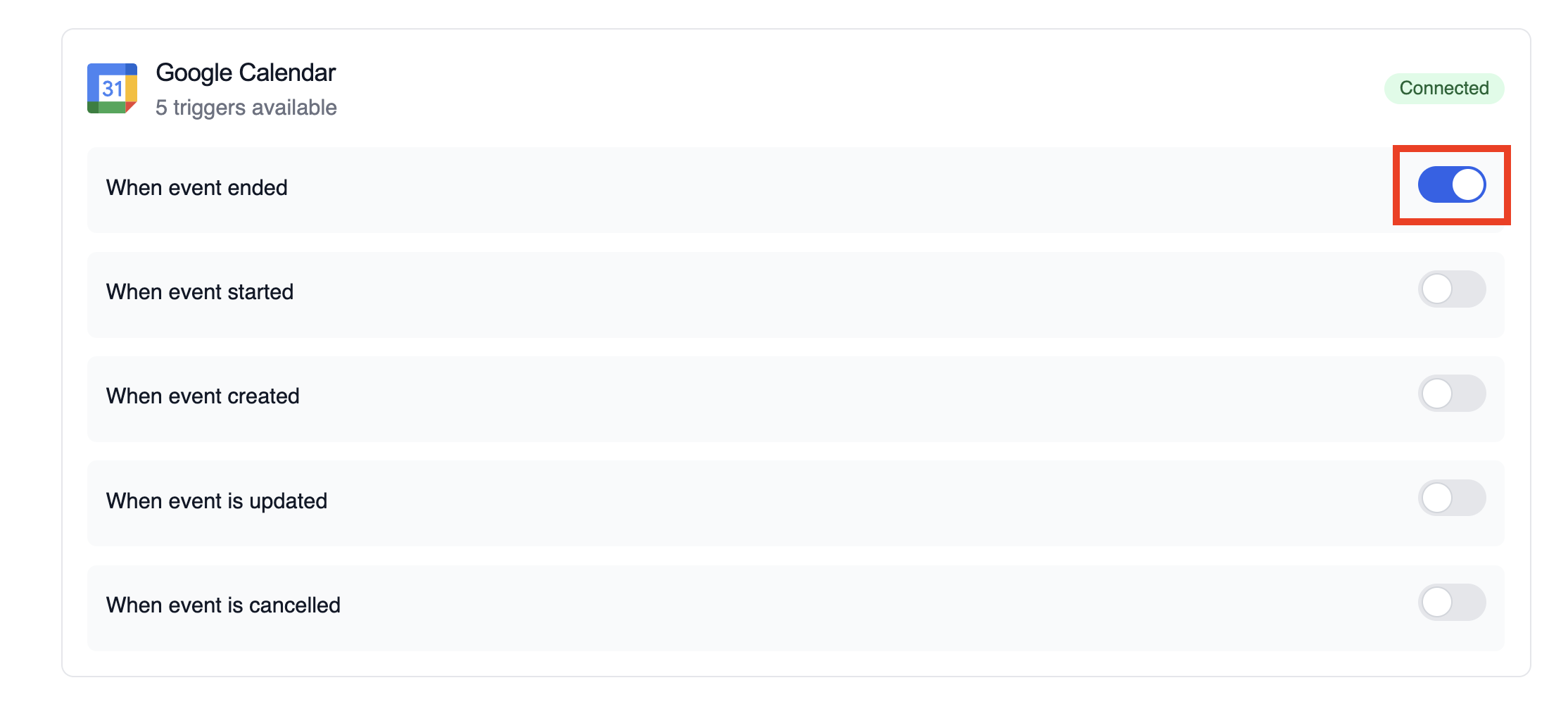
3. Locate **Google Calendar** and switch the toggle to enable
 ## Example: Summarize meeting details
The snippet below mirrors the `calendar-event-crew.py` example in the trigger repository. It parses the payload, analyses the attendees and timing, and produces a meeting brief for downstream tools.
```python theme={null}
from calendar_event_crew import GoogleCalendarEventTrigger
crew = GoogleCalendarEventTrigger().crew()
result = crew.kickoff({
"crewai_trigger_payload": calendar_payload,
})
print(result.raw)
```
Use `crewai_trigger_payload` exactly as it is delivered by the trigger so the crew can extract the proper fields.
## Testing Locally
Test your Google Calendar trigger integration locally using the CrewAI CLI:
```bash theme={null}
# View all available triggers
crewai triggers list
# Simulate a Google Calendar trigger with realistic payload
crewai triggers run google_calendar/event_changed
```
The `crewai triggers run` command will execute your crew with a complete Calendar payload, allowing you to test your parsing logic before deployment.
Use `crewai triggers run google_calendar/event_changed` (not `crewai run`) to
simulate trigger execution during development. After deployment, your crew
will automatically receive the trigger payload.
## Monitoring Executions
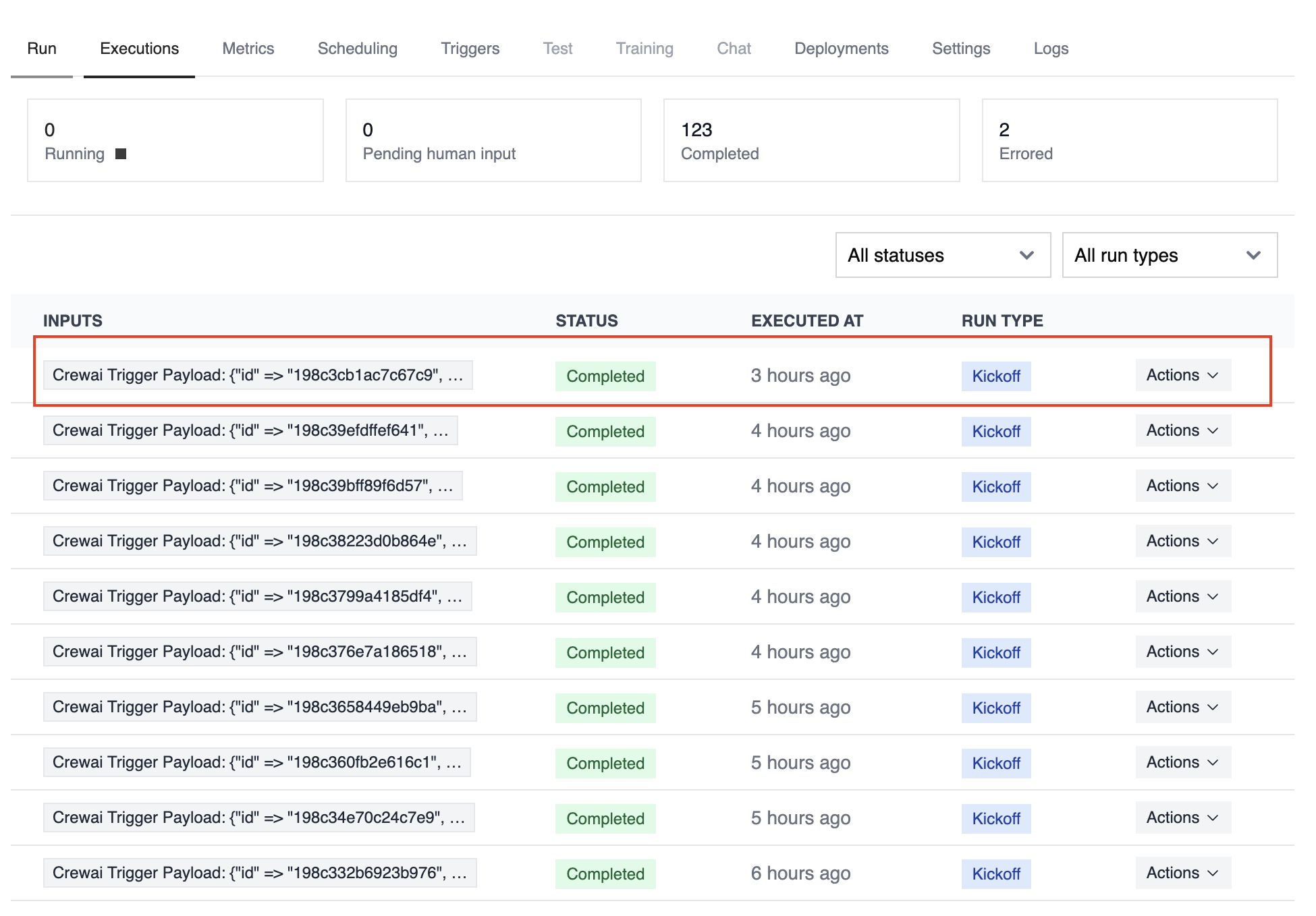
The **Executions** list in the deployment dashboard tracks every triggered run and surfaces payload metadata, output summaries, and errors.
## Example: Summarize meeting details
The snippet below mirrors the `calendar-event-crew.py` example in the trigger repository. It parses the payload, analyses the attendees and timing, and produces a meeting brief for downstream tools.
```python theme={null}
from calendar_event_crew import GoogleCalendarEventTrigger
crew = GoogleCalendarEventTrigger().crew()
result = crew.kickoff({
"crewai_trigger_payload": calendar_payload,
})
print(result.raw)
```
Use `crewai_trigger_payload` exactly as it is delivered by the trigger so the crew can extract the proper fields.
## Testing Locally
Test your Google Calendar trigger integration locally using the CrewAI CLI:
```bash theme={null}
# View all available triggers
crewai triggers list
# Simulate a Google Calendar trigger with realistic payload
crewai triggers run google_calendar/event_changed
```
The `crewai triggers run` command will execute your crew with a complete Calendar payload, allowing you to test your parsing logic before deployment.
Use `crewai triggers run google_calendar/event_changed` (not `crewai run`) to
simulate trigger execution during development. After deployment, your crew
will automatically receive the trigger payload.
## Monitoring Executions
The **Executions** list in the deployment dashboard tracks every triggered run and surfaces payload metadata, output summaries, and errors.
 ## Troubleshooting
* Ensure the correct Google account is connected and the trigger is enabled
* Test locally with `crewai triggers run google_calendar/event_changed` to see the exact payload structure
* Confirm your workflow handles all-day events (payloads use `start.date` and `end.date` instead of timestamps)
* Check execution logs if reminders or attendee arrays are missing—calendar permissions can limit fields in the payload
* Remember: use `crewai triggers run` (not `crewai run`) to simulate trigger execution
## Troubleshooting
* Ensure the correct Google account is connected and the trigger is enabled
* Test locally with `crewai triggers run google_calendar/event_changed` to see the exact payload structure
* Confirm your workflow handles all-day events (payloads use `start.date` and `end.date` instead of timestamps)
* Check execution logs if reminders or attendee arrays are missing—calendar permissions can limit fields in the payload
* Remember: use `crewai triggers run` (not `crewai run`) to simulate trigger execution