> ## Documentation Index
> Fetch the complete documentation index at: https://docs.crewai.com/llms.txt
> Use this file to discover all available pages before exploring further.
# React Component Export
> Learn how to export and integrate CrewAI AMP React components into your applications
This guide explains how to export CrewAI AMP crews as React components and integrate them into your own applications.
## Exporting a React Component
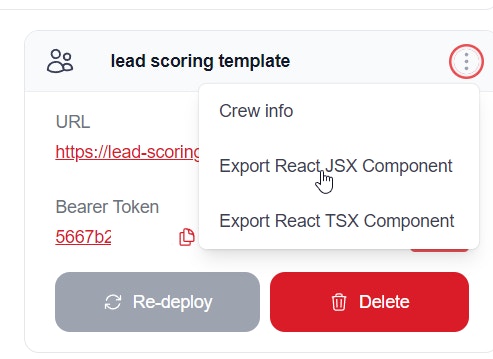
Click on the ellipsis (three dots on the right of your deployed crew) and select the export option and save the file locally. We will be using `CrewLead.jsx` for our example.
## Setting Up Your React Environment
To run this React component locally, you'll need to set up a React development environment and integrate this component into a React project.
* Download and install Node.js from the official website: [https://nodejs.org/](https://nodejs.org/)
* Choose the LTS (Long Term Support) version for stability.
* Open Command Prompt or PowerShell
* Navigate to the directory where you want to create your project
* Run the following command to create a new React project:
```bash theme={null}
npx create-react-app my-crew-app
```
* Change into the project directory:
```bash theme={null}
cd my-crew-app
```
```bash theme={null}
npm install react-dom
```
* Move the downloaded file `CrewLead.jsx` into the `src` folder of your project,
* Open `src/App.js`
* Replace its contents with something like this:
```jsx theme={null}
import React from 'react';
import CrewLead from './CrewLead';
function App() {
return (
);
}
export default App;
```
* Replace `YOUR_API_BASE_URL` and `YOUR_BEARER_TOKEN` with the actual values for your API.
* In your project directory, run:
```bash theme={null}
npm start
```
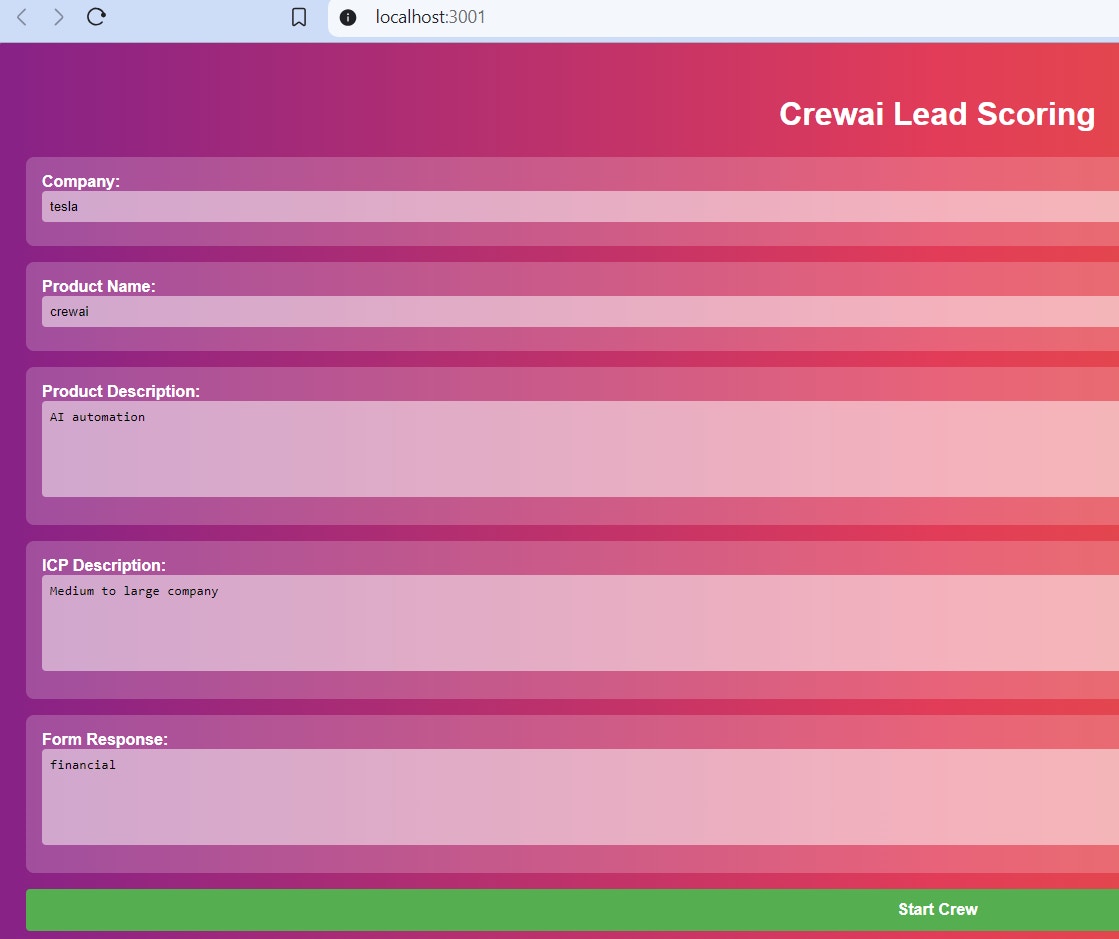
* This will start the development server, and your default web browser should open automatically to [http://localhost:3000](http://localhost:3000), where you'll see your React app running.
## Customization
You can then customise the `CrewLead.jsx` to add color, title etc
## Next Steps
* Customize the component styling to match your application's design
* Add additional props for configuration
* Integrate with your application's state management
* Add error handling and loading states
 ## Next Steps
* Customize the component styling to match your application's design
* Add additional props for configuration
* Integrate with your application's state management
* Add error handling and loading states
## Next Steps
* Customize the component styling to match your application's design
* Add additional props for configuration
* Integrate with your application's state management
* Add error handling and loading states