> ## Documentation Index
> Fetch the complete documentation index at: https://docs.crewai.com/llms.txt
> Use this file to discover all available pages before exploring further.
# Snowflake Integration
> Connect CrewAI agents to Snowflake Cortex Analyst, Cortex Search, and SQL execution through the Snowflake-managed MCP server.
## Overview
Connect your CrewAI agents directly to your Snowflake data through the [Snowflake-managed MCP server](https://docs.snowflake.com/en/user-guide/snowflake-cortex/cortex-agents-mcp). The Snowflake integration lets your agents query structured data with **Cortex Analyst**, search unstructured data with **Cortex Search**, and run governed SQL against your warehouses — all without writing or hosting any connector code.
Under the hood, the Snowflake integration is a managed wrapper around CrewAI's [Custom MCP Server](/en/enterprise/guides/custom-mcp-server) support. Snowflake exposes its Cortex AI capabilities through a [Model Context Protocol](https://modelcontextprotocol.io/) endpoint, and CrewAI connects to it securely on your behalf. Any tool you expose on the Snowflake side — Cortex Analyst, Cortex Search, SQL execution, Cortex Agents, or your own custom tools — becomes available to your crews.
## Key Capabilities
Ask questions in natural language and let [Cortex Analyst](https://docs.snowflake.com/en/user-guide/snowflake-cortex/cortex-analyst) generate and run SQL against your **structured** data using rich semantic models.
Retrieve relevant **unstructured** data for RAG and knowledge workflows with [Cortex Search](https://docs.snowflake.com/en/user-guide/snowflake-cortex/cortex-search/cortex-search-overview), Snowflake's fully managed search service.
Run governed SQL queries directly against your Snowflake warehouses, with configurable read-only mode, timeouts, and warehouse selection.
Because the integration surfaces whatever tools your MCP server publishes, you can also expose **Cortex Agents** and **custom tools** (user-defined functions and stored procedures) to your CrewAI agents.
## Prerequisites
Before using the Snowflake integration, ensure you have:
* A [CrewAI AMP](https://app.crewai.com) account with an active subscription
* A Snowflake account with access to Cortex AI features
* A [Snowflake-managed MCP server](https://docs.snowflake.com/en/user-guide/snowflake-cortex/cortex-agents-mcp) configured with the tools you want to expose
* Appropriate Snowflake privileges (USAGE/SELECT) on the MCP server and its underlying objects
## Setting Up the Snowflake MCP Server
The Snowflake-managed MCP server runs inside your Snowflake account and defines which tools are available to external clients like CrewAI. Create one with the [`CREATE MCP SERVER`](https://docs.snowflake.com/en/sql-reference/sql/create-mcp-server) command, listing the Cortex Search services, Cortex Analyst semantic views, and SQL tools you want to expose.
```sql theme={null}
CREATE MCP SERVER my_mcp_server
FROM SPECIFICATION $$
tools:
- name: "sales_analyst"
type: "CORTEX_ANALYST"
identifier: "MY_DATABASE.MY_SCHEMA.sales_semantic_view"
description: "Answer questions about sales metrics"
- name: "docs_search"
type: "CORTEX_SEARCH_SERVICE_QUERY"
identifier: "MY_DATABASE.MY_SCHEMA.support_docs_search"
description: "Search internal support documentation"
- name: "run_sql"
type: "SQL_EXECUTION"
description: "Execute read-only SQL queries"
$$;
```
The MCP endpoint follows the format `https:///api/v2/databases/{database}/schemas/{schema}/mcp-servers/{name}`. CrewAI builds this URL automatically from the **Account URL**, **Database**, **Schema**, and **MCP Server Name** you provide when configuring the integration.
For the complete specification — including Cortex Agents, custom tools, response-size limits, and governance options — see the [Snowflake-managed MCP server documentation](https://docs.snowflake.com/en/user-guide/snowflake-cortex/cortex-agents-mcp).
## Connecting Snowflake in CrewAI AMP
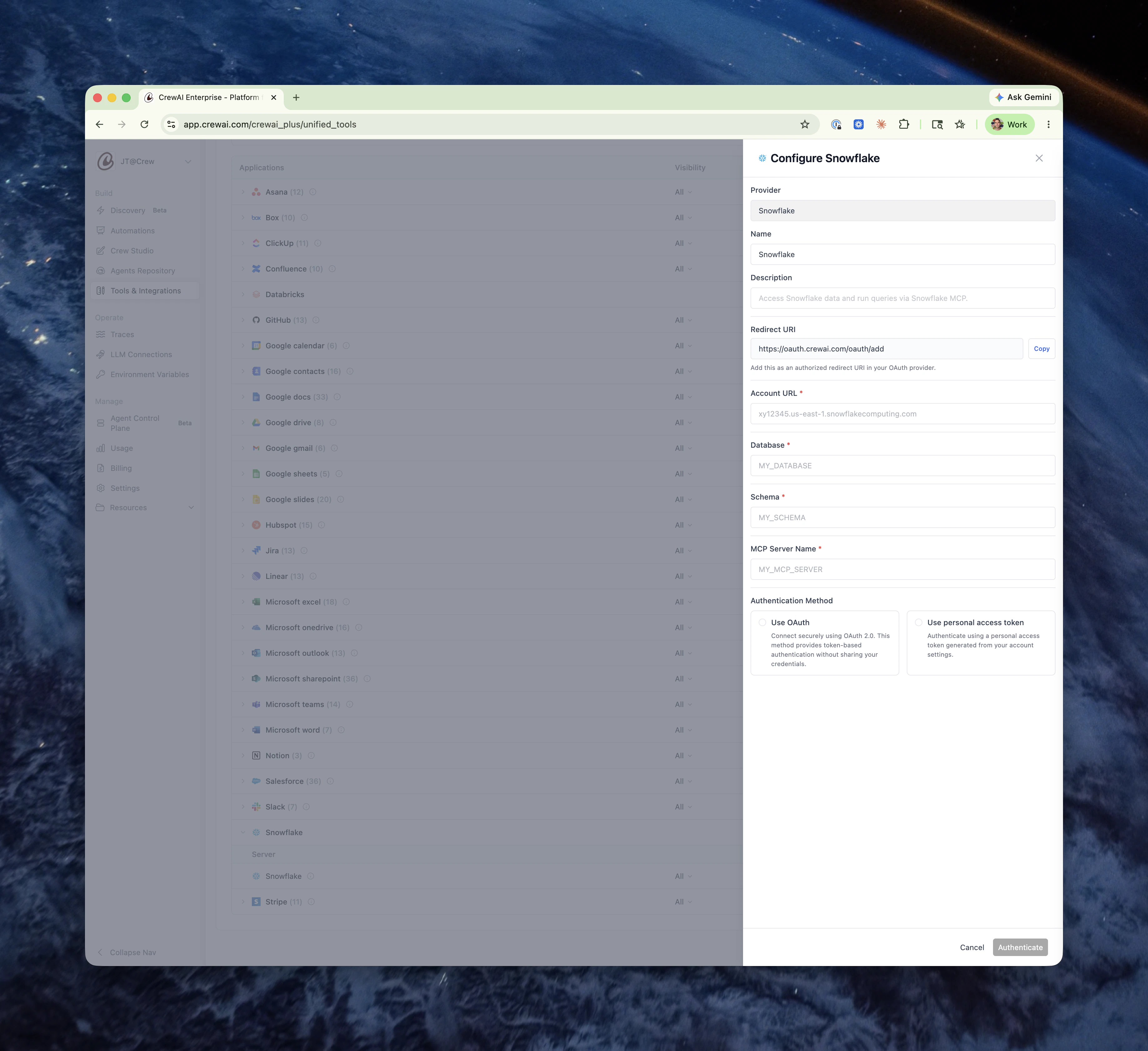 Navigate to **Tools & Integrations** in the left sidebar of CrewAI AMP, find **Snowflake** in the list of applications, and open its configuration panel.
Fill in the connection fields that CrewAI uses to reach your Snowflake MCP server:
| Field | Required | Description |
| ------------------- | -------- | ---------------------------------------------------------------------------------- |
| **Name** | Yes | A descriptive name for this connection (defaults to `Snowflake`). |
| **Description** | No | An optional summary of what this connection provides. |
| **Account URL** | Yes | Your Snowflake account URL, e.g. `xy12345.us-east-1.snowflakecomputing.com`. |
| **Database** | Yes | The database that contains your MCP server (e.g. `MY_DATABASE`). |
| **Schema** | Yes | The schema that contains your MCP server (e.g. `MY_SCHEMA`). |
| **MCP Server Name** | Yes | The name of the MCP server object you created in Snowflake (e.g. `MY_MCP_SERVER`). |
Select how CrewAI authenticates to Snowflake. **OAuth** is recommended.
* **Use OAuth** — Connect securely using OAuth 2.0 for token-based authentication without sharing your credentials. CrewAI handles the full authorization flow and refreshes tokens automatically. Copy the **Redirect URI** shown in the form (`https://oauth.crewai.com/oauth/add`) and register it as an authorized redirect URI in your Snowflake [OAuth security integration](https://docs.snowflake.com/en/user-guide/oauth-custom).
* **Use personal access token** — Authenticate using a [programmatic access token](https://docs.snowflake.com/en/user-guide/programmatic-access-tokens) generated from your Snowflake account settings. Assign a least-privileged role to the token to limit exposure.
Click **Authenticate**. For OAuth, you'll be redirected to Snowflake to authorize access. Once authenticated, the Snowflake server appears in your Connections and its tools become available to your crews.
With OAuth, each user authenticates individually and queries run with their Snowflake `DEFAULT_ROLE`. Make sure connecting users have a default role and warehouse set (`ALTER USER SET DEFAULT_ROLE = '' DEFAULT_WAREHOUSE = ''`) so Cortex Analyst and SQL tools have compute to run on.
## Using Snowflake Tools in Your Crews
Once connected, the tools your MCP server exposes appear alongside built-in connections on the **Tools & Integrations** page. You can:
* **Assign tools to agents** in your crews just like any other CrewAI tool.
* **Manage visibility** to control which team members can use the connection.
* **Edit or remove** the connection at any time from the Connections list.
Your agents can now ask Cortex Analyst for metrics, run Cortex Search over your documents, and execute SQL — with results flowing back into their reasoning automatically.
Snowflake enforces governance on the MCP server: role-based access control determines which tools a user can discover and invoke, and limits apply to response size, tool count (max 50 per server), and recursion depth. If a tool call fails, confirm the connecting user's role has the required privileges on the MCP server and its underlying objects.
## Learn More
Official Snowflake documentation for creating and governing the MCP server.
Learn how CrewAI connects to any MCP server, the foundation the Snowflake integration builds on.
Contact our support team for assistance with the Snowflake integration or troubleshooting.
Navigate to **Tools & Integrations** in the left sidebar of CrewAI AMP, find **Snowflake** in the list of applications, and open its configuration panel.
Fill in the connection fields that CrewAI uses to reach your Snowflake MCP server:
| Field | Required | Description |
| ------------------- | -------- | ---------------------------------------------------------------------------------- |
| **Name** | Yes | A descriptive name for this connection (defaults to `Snowflake`). |
| **Description** | No | An optional summary of what this connection provides. |
| **Account URL** | Yes | Your Snowflake account URL, e.g. `xy12345.us-east-1.snowflakecomputing.com`. |
| **Database** | Yes | The database that contains your MCP server (e.g. `MY_DATABASE`). |
| **Schema** | Yes | The schema that contains your MCP server (e.g. `MY_SCHEMA`). |
| **MCP Server Name** | Yes | The name of the MCP server object you created in Snowflake (e.g. `MY_MCP_SERVER`). |
Select how CrewAI authenticates to Snowflake. **OAuth** is recommended.
* **Use OAuth** — Connect securely using OAuth 2.0 for token-based authentication without sharing your credentials. CrewAI handles the full authorization flow and refreshes tokens automatically. Copy the **Redirect URI** shown in the form (`https://oauth.crewai.com/oauth/add`) and register it as an authorized redirect URI in your Snowflake [OAuth security integration](https://docs.snowflake.com/en/user-guide/oauth-custom).
* **Use personal access token** — Authenticate using a [programmatic access token](https://docs.snowflake.com/en/user-guide/programmatic-access-tokens) generated from your Snowflake account settings. Assign a least-privileged role to the token to limit exposure.
Click **Authenticate**. For OAuth, you'll be redirected to Snowflake to authorize access. Once authenticated, the Snowflake server appears in your Connections and its tools become available to your crews.
With OAuth, each user authenticates individually and queries run with their Snowflake `DEFAULT_ROLE`. Make sure connecting users have a default role and warehouse set (`ALTER USER SET DEFAULT_ROLE = '' DEFAULT_WAREHOUSE = ''`) so Cortex Analyst and SQL tools have compute to run on.
## Using Snowflake Tools in Your Crews
Once connected, the tools your MCP server exposes appear alongside built-in connections on the **Tools & Integrations** page. You can:
* **Assign tools to agents** in your crews just like any other CrewAI tool.
* **Manage visibility** to control which team members can use the connection.
* **Edit or remove** the connection at any time from the Connections list.
Your agents can now ask Cortex Analyst for metrics, run Cortex Search over your documents, and execute SQL — with results flowing back into their reasoning automatically.
Snowflake enforces governance on the MCP server: role-based access control determines which tools a user can discover and invoke, and limits apply to response size, tool count (max 50 per server), and recursion depth. If a tool call fails, confirm the connecting user's role has the required privileges on the MCP server and its underlying objects.
## Learn More
Official Snowflake documentation for creating and governing the MCP server.
Learn how CrewAI connects to any MCP server, the foundation the Snowflake integration builds on.
Contact our support team for assistance with the Snowflake integration or troubleshooting.