> ## Documentation Index
> Fetch the complete documentation index at: https://docs.crewai.com/llms.txt
> Use this file to discover all available pages before exploring further.
# Image Generation with DALL-E
> Learn how to use DALL-E for AI-powered image generation in your CrewAI projects
CrewAI supports integration with OpenAI's DALL-E, allowing your AI agents to generate images as part of their tasks. This guide will walk you through how to set up and use the DALL-E tool in your CrewAI projects.
## Prerequisites
* crewAI installed (latest version)
* OpenAI API key with access to DALL-E
## Setting Up the DALL-E Tool
```python theme={null}
from crewai_tools import DallETool
```
```python theme={null}
@agent
def researcher(self) -> Agent:
return Agent(
config=self.agents_config['researcher'],
tools=[SerperDevTool(), DallETool()], # Add DallETool to the list of tools
allow_delegation=False,
verbose=True
)
```
## Using the DALL-E Tool
Once you've added the DALL-E tool to your agent, it can generate images based on text prompts. The tool will return a URL to the generated image, which can be used in the agent's output or passed to other agents for further processing.
### Example Agent Configuration
```yaml theme={null}
role: >
LinkedIn Profile Senior Data Researcher
goal: >
Uncover detailed LinkedIn profiles based on provided name {name} and domain {domain}
Generate a Dall-e image based on domain {domain}
backstory: >
You're a seasoned researcher with a knack for uncovering the most relevant LinkedIn profiles.
Known for your ability to navigate LinkedIn efficiently, you excel at gathering and presenting
professional information clearly and concisely.
```
### Expected Output
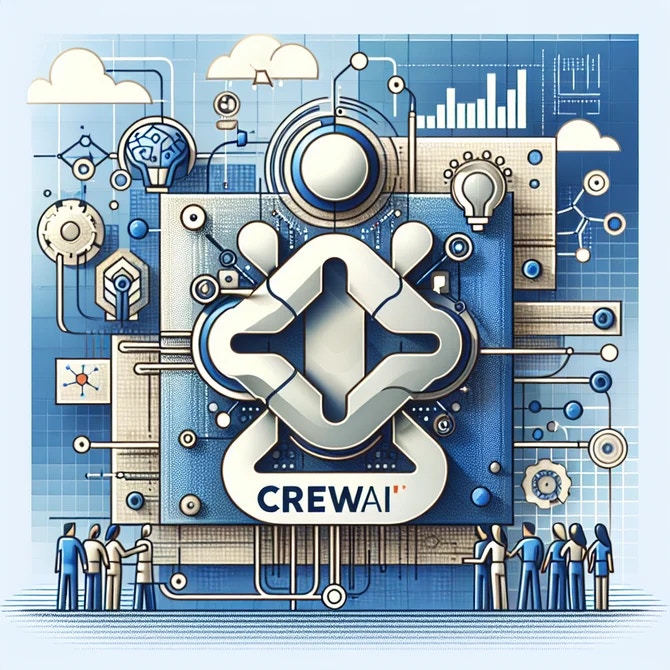
The agent with the DALL-E tool will be able to generate the image and provide a URL in its response. You can then download the image.
 ## Best Practices
1. **Be specific in your image generation prompts** to get the best results.
2. **Consider generation time** - Image generation can take some time, so factor this into your task planning.
3. **Follow usage policies** - Always comply with OpenAI's usage policies when generating images.
## Troubleshooting
1. **Check API access** - Ensure your OpenAI API key has access to DALL-E.
2. **Version compatibility** - Check that you're using the latest version of crewAI and crewai-tools.
3. **Tool configuration** - Verify that the DALL-E tool is correctly added to the agent's tool list.
## Best Practices
1. **Be specific in your image generation prompts** to get the best results.
2. **Consider generation time** - Image generation can take some time, so factor this into your task planning.
3. **Follow usage policies** - Always comply with OpenAI's usage policies when generating images.
## Troubleshooting
1. **Check API access** - Ensure your OpenAI API key has access to DALL-E.
2. **Version compatibility** - Check that you're using the latest version of crewAI and crewai-tools.
3. **Tool configuration** - Verify that the DALL-E tool is correctly added to the agent's tool list.