> ## Documentation Index
> Fetch the complete documentation index at: https://docs.crewai.com/llms.txt
> Use this file to discover all available pages before exploring further.
# 역할 기반 접근 제어 (RBAC)
> 역할과 자동화별 가시성으로 crews, 도구, 데이터 접근을 제어합니다.
## 개요
CrewAI AOP의 RBAC는 **조직 수준 역할**과 **자동화(Automation) 수준 가시성**을 결합하여 안전하고 확장 가능한 접근 제어를 제공합니다.
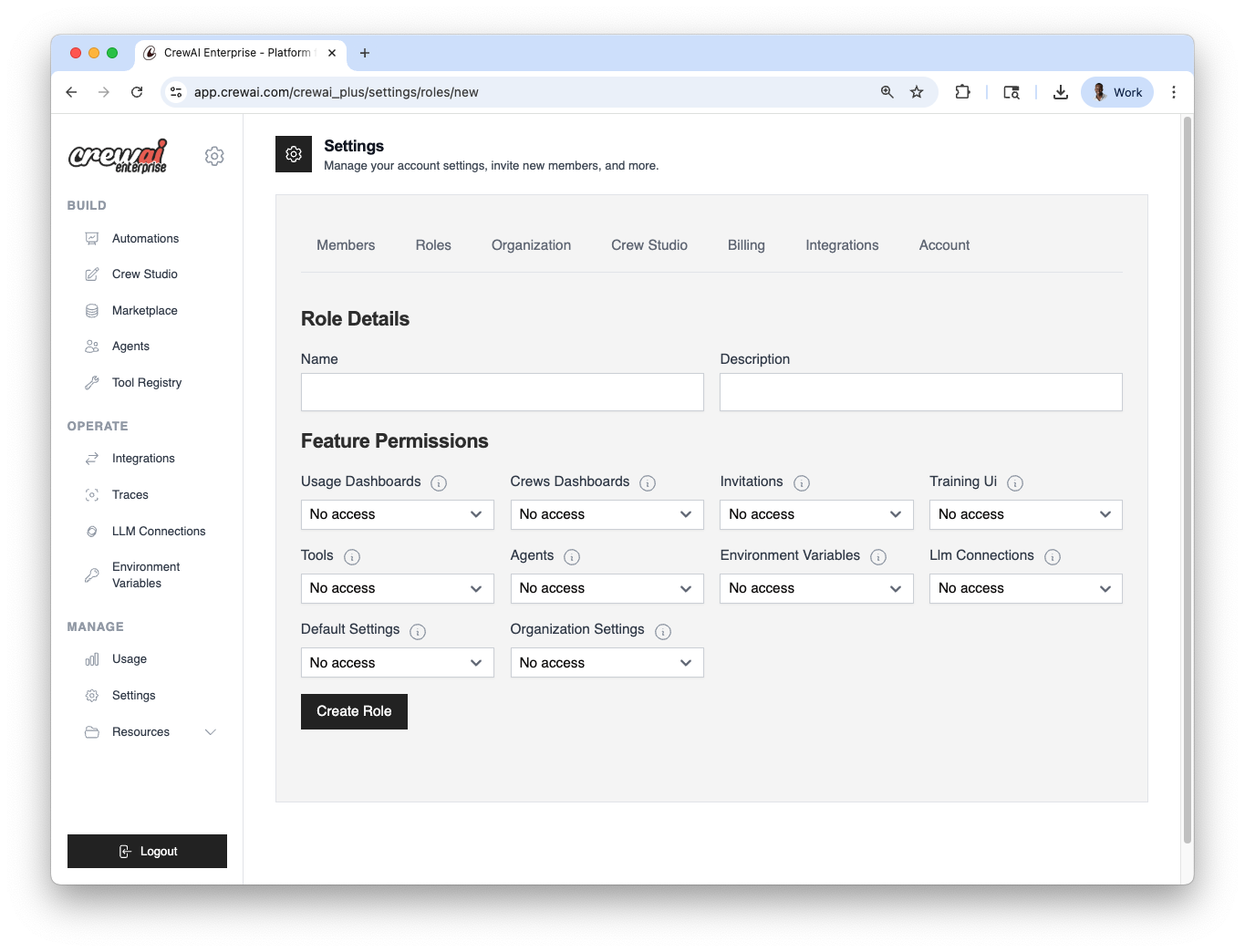 ## 사용자와 역할
워크스페이스의 각 구성원은 역할이 있으며, 이는 기능 접근 범위를 결정합니다.
가능한 작업:
* 사전 정의된 역할 사용 (Owner, Member)
* 권한을 세분화한 커스텀 역할 생성
* 설정 화면에서 언제든 역할 할당/변경
설정 위치: Settings → Roles
Settings → Roles로 이동합니다.
Owner 또는 Member를 사용하거나 Create role로 커스텀
역할을 만듭니다.
사용자들을 선택하여 역할을 지정합니다. 언제든 변경할 수 있습니다.
### 구성 요약
| 영역 | 위치 | 옵션 |
| :------- | :--------------------------------- | :--------------------- |
| 사용자 & 역할 | Settings → Roles | Owner, Member; 커스텀 역할 |
| 자동화 가시성 | Automation → Settings → Visibility | Private; 사용자/역할 화이트리스트 |
## 자동화 수준 접근 제어
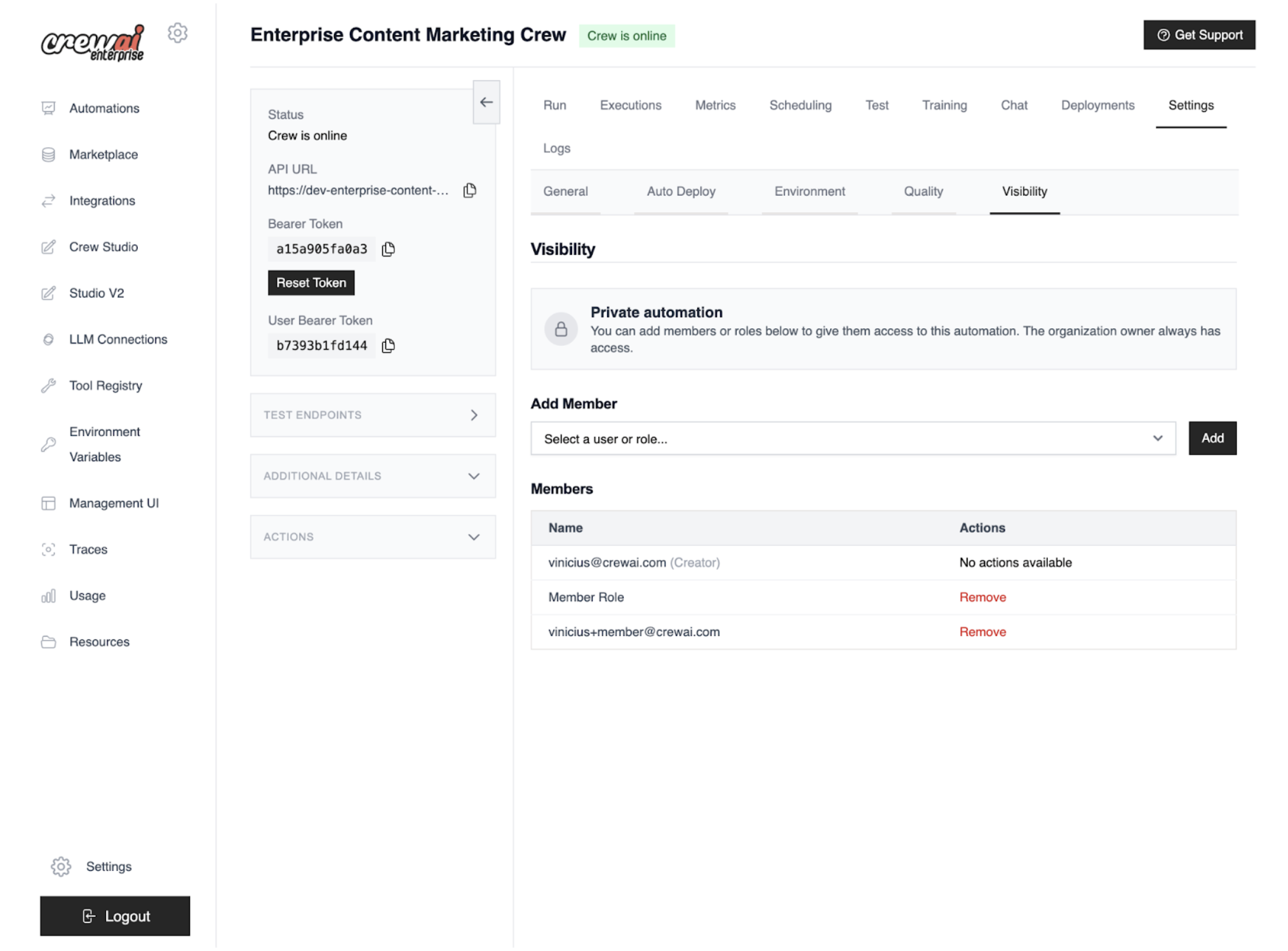
조직 역할과 별개로, **Automations**는 사용자/역할별로 특정 자동화 접근을 제한하는 가시성 설정을 제공합니다.
유용한 경우:
* 민감/실험 자동화를 비공개로 유지
* 대규모 팀/외부 협업에서 가시성 관리
* 격리된 컨텍스트에서 자동화 테스트
Private 모드에서는 화이트리스트에 포함된 사용자/역할만 다음 작업이 가능합니다:
* 자동화 보기
* 실행/API 사용
* 로그, 메트릭, 설정 접근
조직 Owner는 항상 접근 가능하며, 가시성 설정에 영향을 받지 않습니다.
설정 위치: Automation → Settings → Visibility
Automation → Settings → Visibility로 이동합니다.
Private를 선택합니다. Owner는 항상 접근 가능합니다.
보기/실행/로그·메트릭·설정 접근이 가능한 사용자/역할을 추가합니다.
저장 후, 목록에 없는 사용자가 보거나 실행할 수 없는지 확인합니다.
### Private 모드 접근 결과
| 동작 | Owner | 화이트리스트 사용자/역할 | 비포함 |
| :-------- | :---- | :------------ | :-- |
| 자동화 보기 | ✓ | ✓ | ✗ |
| 실행/API | ✓ | ✓ | ✗ |
| 로그/메트릭/설정 | ✓ | ✓ | ✗ |
Owner는 항상 접근 가능하며, Private 모드에서는 화이트리스트에 포함된
사용자/역할만 권한이 부여됩니다.
## 사용자와 역할
워크스페이스의 각 구성원은 역할이 있으며, 이는 기능 접근 범위를 결정합니다.
가능한 작업:
* 사전 정의된 역할 사용 (Owner, Member)
* 권한을 세분화한 커스텀 역할 생성
* 설정 화면에서 언제든 역할 할당/변경
설정 위치: Settings → Roles
Settings → Roles로 이동합니다.
Owner 또는 Member를 사용하거나 Create role로 커스텀
역할을 만듭니다.
사용자들을 선택하여 역할을 지정합니다. 언제든 변경할 수 있습니다.
### 구성 요약
| 영역 | 위치 | 옵션 |
| :------- | :--------------------------------- | :--------------------- |
| 사용자 & 역할 | Settings → Roles | Owner, Member; 커스텀 역할 |
| 자동화 가시성 | Automation → Settings → Visibility | Private; 사용자/역할 화이트리스트 |
## 자동화 수준 접근 제어
조직 역할과 별개로, **Automations**는 사용자/역할별로 특정 자동화 접근을 제한하는 가시성 설정을 제공합니다.
유용한 경우:
* 민감/실험 자동화를 비공개로 유지
* 대규모 팀/외부 협업에서 가시성 관리
* 격리된 컨텍스트에서 자동화 테스트
Private 모드에서는 화이트리스트에 포함된 사용자/역할만 다음 작업이 가능합니다:
* 자동화 보기
* 실행/API 사용
* 로그, 메트릭, 설정 접근
조직 Owner는 항상 접근 가능하며, 가시성 설정에 영향을 받지 않습니다.
설정 위치: Automation → Settings → Visibility
Automation → Settings → Visibility로 이동합니다.
Private를 선택합니다. Owner는 항상 접근 가능합니다.
보기/실행/로그·메트릭·설정 접근이 가능한 사용자/역할을 추가합니다.
저장 후, 목록에 없는 사용자가 보거나 실행할 수 없는지 확인합니다.
### Private 모드 접근 결과
| 동작 | Owner | 화이트리스트 사용자/역할 | 비포함 |
| :-------- | :---- | :------------ | :-- |
| 자동화 보기 | ✓ | ✓ | ✗ |
| 실행/API | ✓ | ✓ | ✗ |
| 로그/메트릭/설정 | ✓ | ✓ | ✗ |
Owner는 항상 접근 가능하며, Private 모드에서는 화이트리스트에 포함된
사용자/역할만 권한이 부여됩니다.
 RBAC 구성과 점검에 대한 지원이 필요하면 연락해 주세요.