> ## Documentation Index
> Fetch the complete documentation index at: https://docs.crewai.com/llms.txt
> Use this file to discover all available pages before exploring further.
# Role-Based Access Control (RBAC)
> Control access to crews, tools, and data with roles, scopes, and granular permissions.
## Overview
RBAC in CrewAI AMP enables secure, scalable access management through a combination of organization‑level roles and automation‑level visibility controls.
 ## Users and Roles
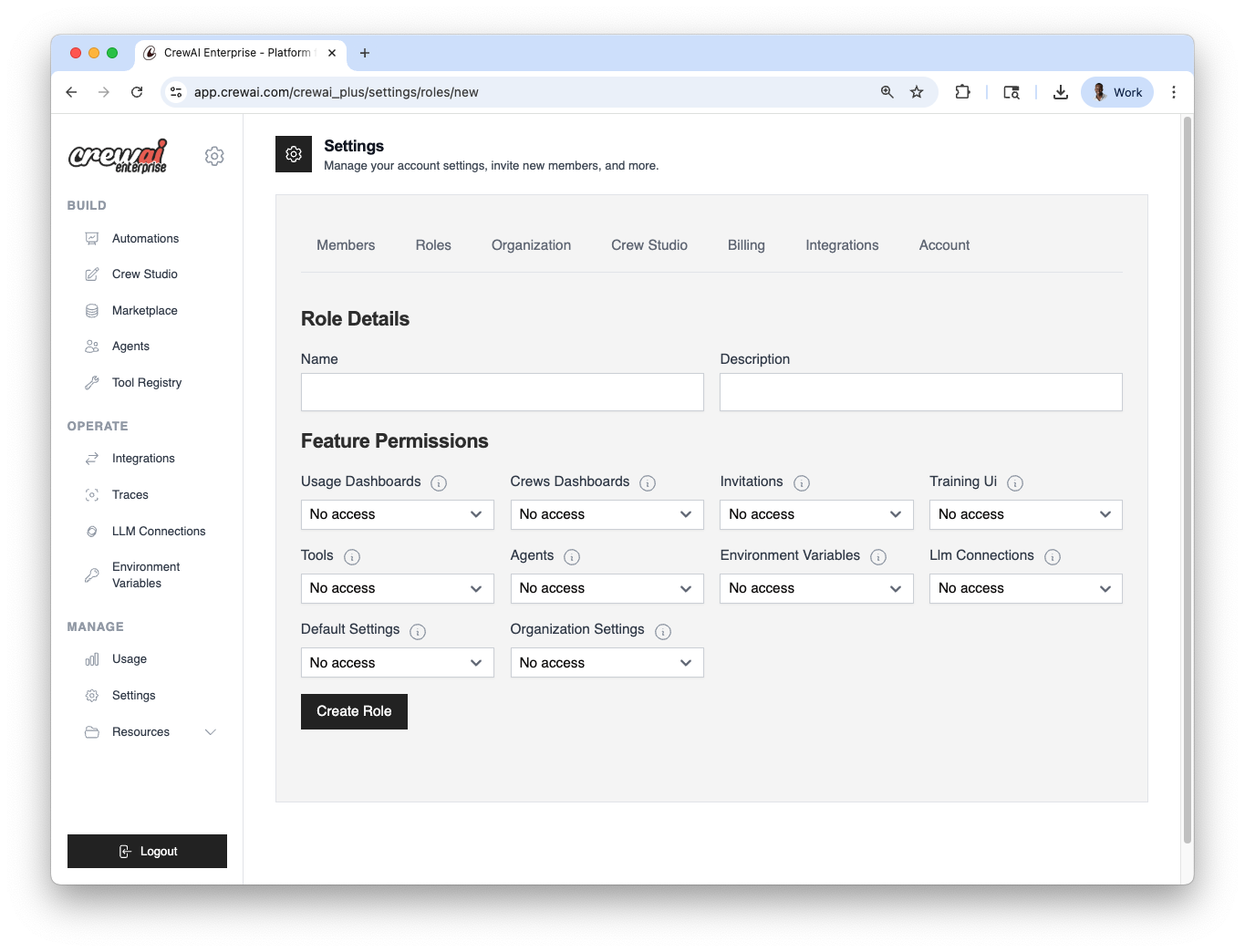
Each member in your CrewAI workspace is assigned a role, which determines their access across various features.
You can:
* Use predefined roles (Owner, Member)
* Create custom roles tailored to specific permissions
* Assign roles at any time through the settings panel
You can configure users and roles in Settings → Roles.
Go to Settings → Roles in CrewAI AMP.
Use a predefined role (Owner, Member) or click{" "}
Create role to define a custom one.
Select users and assign the role. You can change this anytime.
### Configuration summary
| Area | Where to configure | Options |
| :-------------------- | :--------------------------------- | :-------------------------------------- |
| Users & Roles | Settings → Roles | Predefined: Owner, Member; Custom roles |
| Automation visibility | Automation → Settings → Visibility | Private; Whitelist users/roles |
## Automation‑level Access Control
In addition to organization‑wide roles, CrewAI Automations support fine‑grained visibility settings that let you restrict access to specific automations by user or role.
This is useful for:
* Keeping sensitive or experimental automations private
* Managing visibility across large teams or external collaborators
* Testing automations in isolated contexts
Deployments can be configured as private, meaning only whitelisted users and roles will be able to:
* View the deployment
* Run it or interact with its API
* Access its logs, metrics, and settings
The organization owner always has access, regardless of visibility settings.
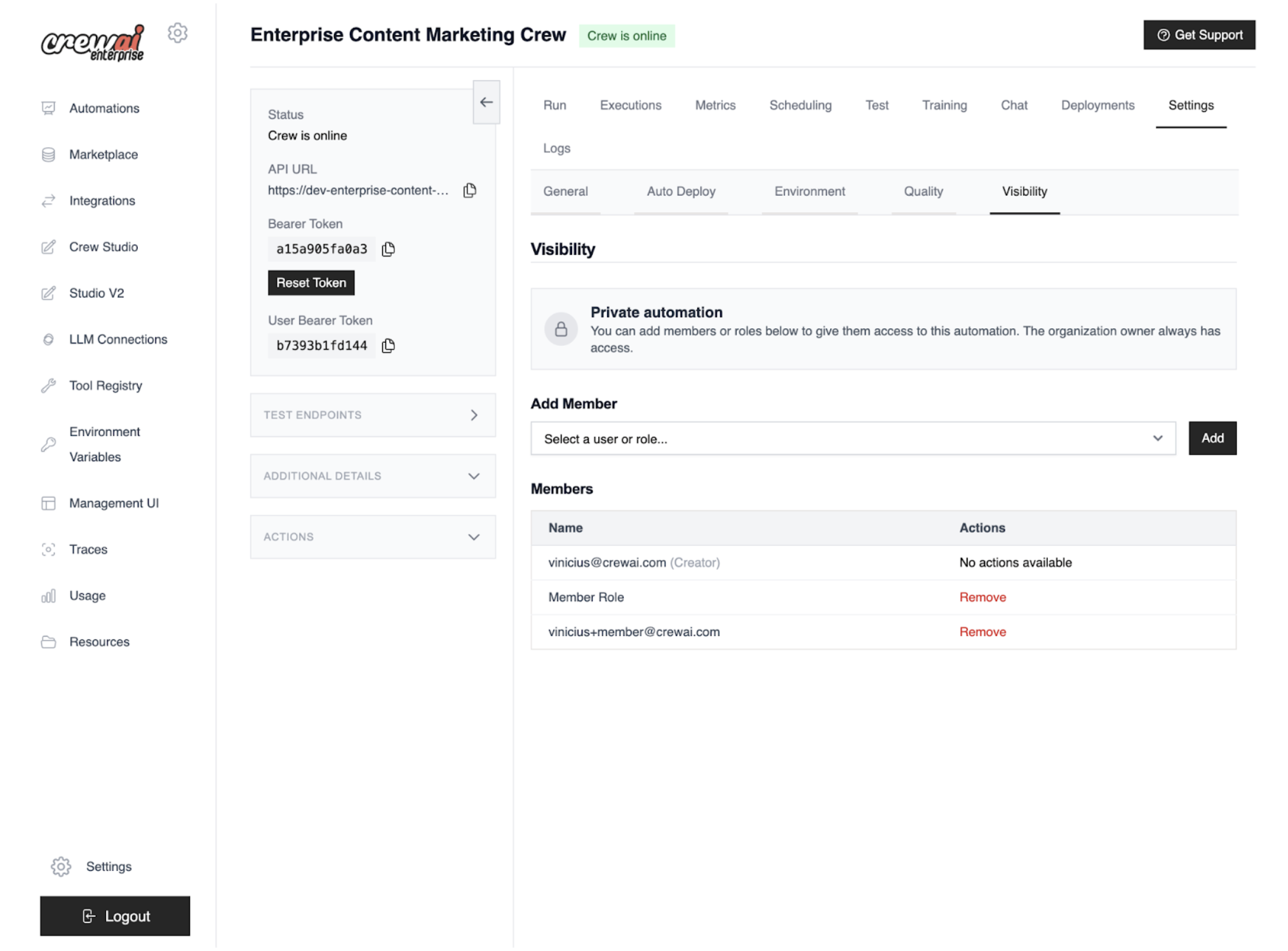
You can configure automation‑level access control in Automation → Settings → Visibility tab.
Navigate to Automation → Settings → Visibility.
Choose Private to restrict access. The organization owner always
retains access.
Add specific users and roles allowed to view, run, and access
logs/metrics/settings.
Save changes, then confirm that non‑whitelisted users cannot view or run the
automation.
### Private visibility: access outcomes
| Action | Owner | Whitelisted user/role | Not whitelisted |
| :--------------------------- | :---- | :-------------------- | :-------------- |
| View automation | ✓ | ✓ | ✗ |
| Run automation/API | ✓ | ✓ | ✗ |
| Access logs/metrics/settings | ✓ | ✓ | ✗ |
The organization owner always has access. In private mode, only whitelisted
users and roles can view, run, and access logs/metrics/settings.
## Users and Roles
Each member in your CrewAI workspace is assigned a role, which determines their access across various features.
You can:
* Use predefined roles (Owner, Member)
* Create custom roles tailored to specific permissions
* Assign roles at any time through the settings panel
You can configure users and roles in Settings → Roles.
Go to Settings → Roles in CrewAI AMP.
Use a predefined role (Owner, Member) or click{" "}
Create role to define a custom one.
Select users and assign the role. You can change this anytime.
### Configuration summary
| Area | Where to configure | Options |
| :-------------------- | :--------------------------------- | :-------------------------------------- |
| Users & Roles | Settings → Roles | Predefined: Owner, Member; Custom roles |
| Automation visibility | Automation → Settings → Visibility | Private; Whitelist users/roles |
## Automation‑level Access Control
In addition to organization‑wide roles, CrewAI Automations support fine‑grained visibility settings that let you restrict access to specific automations by user or role.
This is useful for:
* Keeping sensitive or experimental automations private
* Managing visibility across large teams or external collaborators
* Testing automations in isolated contexts
Deployments can be configured as private, meaning only whitelisted users and roles will be able to:
* View the deployment
* Run it or interact with its API
* Access its logs, metrics, and settings
The organization owner always has access, regardless of visibility settings.
You can configure automation‑level access control in Automation → Settings → Visibility tab.
Navigate to Automation → Settings → Visibility.
Choose Private to restrict access. The organization owner always
retains access.
Add specific users and roles allowed to view, run, and access
logs/metrics/settings.
Save changes, then confirm that non‑whitelisted users cannot view or run the
automation.
### Private visibility: access outcomes
| Action | Owner | Whitelisted user/role | Not whitelisted |
| :--------------------------- | :---- | :-------------------- | :-------------- |
| View automation | ✓ | ✓ | ✗ |
| Run automation/API | ✓ | ✓ | ✗ |
| Access logs/metrics/settings | ✓ | ✓ | ✗ |
The organization owner always has access. In private mode, only whitelisted
users and roles can view, run, and access logs/metrics/settings.
 Contact our support team for assistance with RBAC questions.