
ACP (Beta) Docs Navigation
- Overview
- Monitoring
- Policies (you are here)
Overview
Policies let you enforce organization-wide controls — today PII Redaction and Cost Limit — across many automations at once, instead of configuring each deployment individually. Open the Policies tab in the Agent Control Plane to manage them.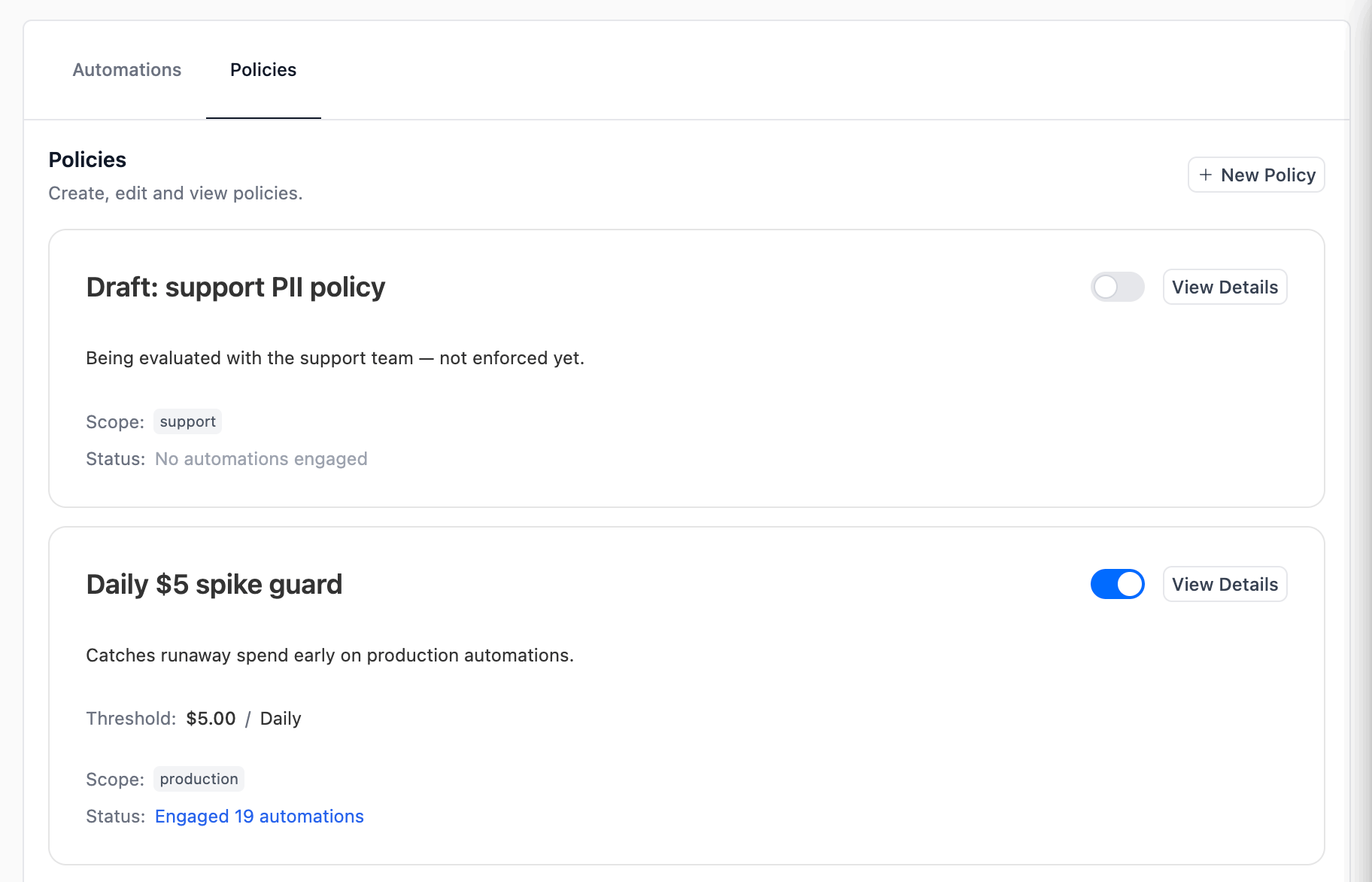
Requirements
- The Agent Control Plane feature must be enabled for your organization. See Overview — Requirements.
- The
manageRBAC permission on Agent Control Plane is required to create, edit, toggle, or delete policies. Thereadpermission is enough to view them. - All policy changes are versioned for auditing.
Policy types
Every policy is one of the types below. Open the tab for the policy you want to enforce.- PII Redaction
- Cost Limit
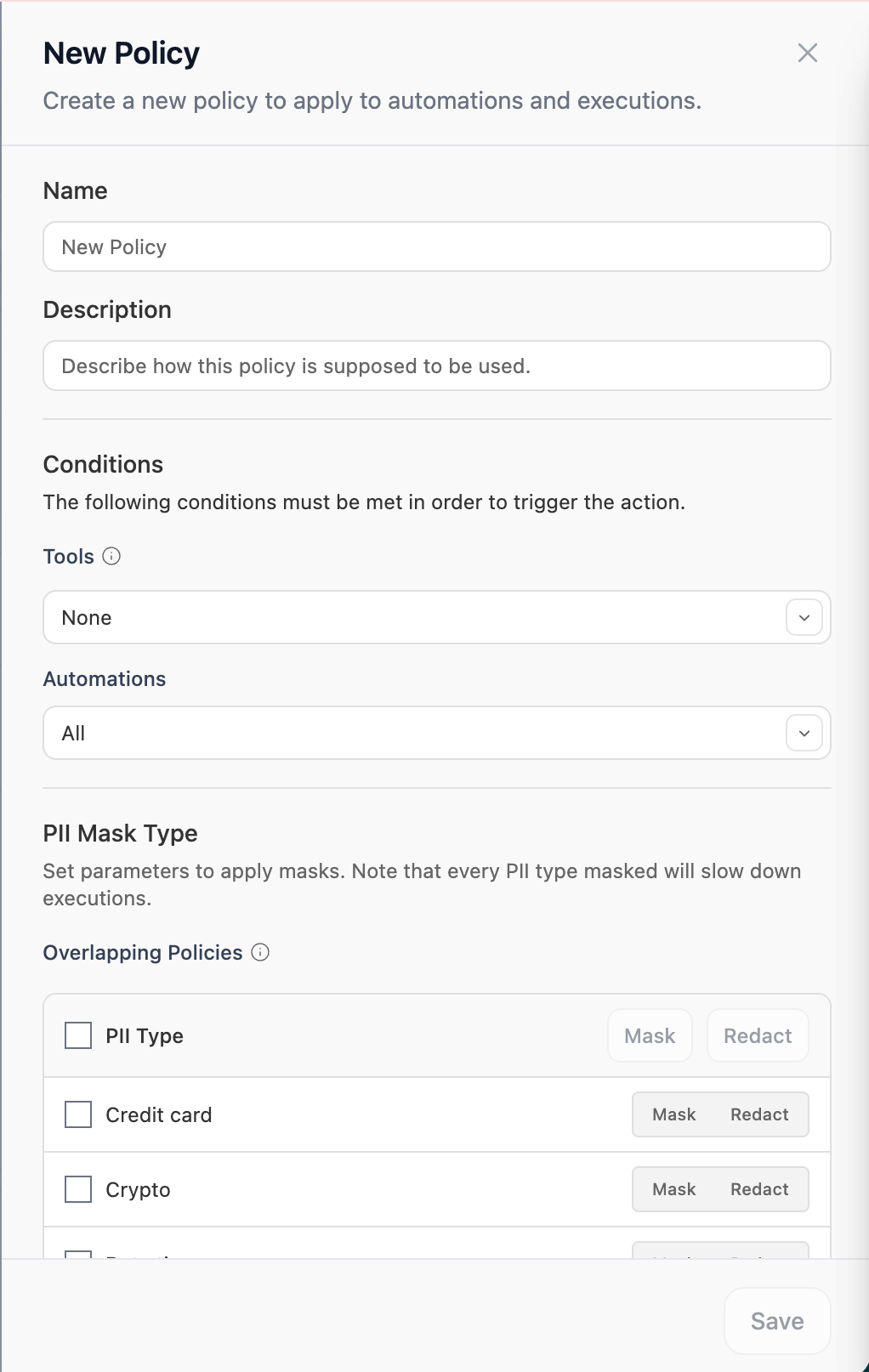
Applies PII redaction to executions of every matching automation, using the same entity catalog and custom recognizers documented in PII Redaction for Traces.Configuration — in the PII Mask Type table, check each entity type you want covered and choose how to handle it:
- Mask — replaces the match with the entity label (e.g.
<CREDIT_CARD>). - Redact — removes the matched text entirely.
Creating a policy
- PII Redaction
- Cost Limit
1
Open the editor
Click + Create new at the top-right of the Policies tab, or View Details on an existing policy card.
2
Name and describe the policy
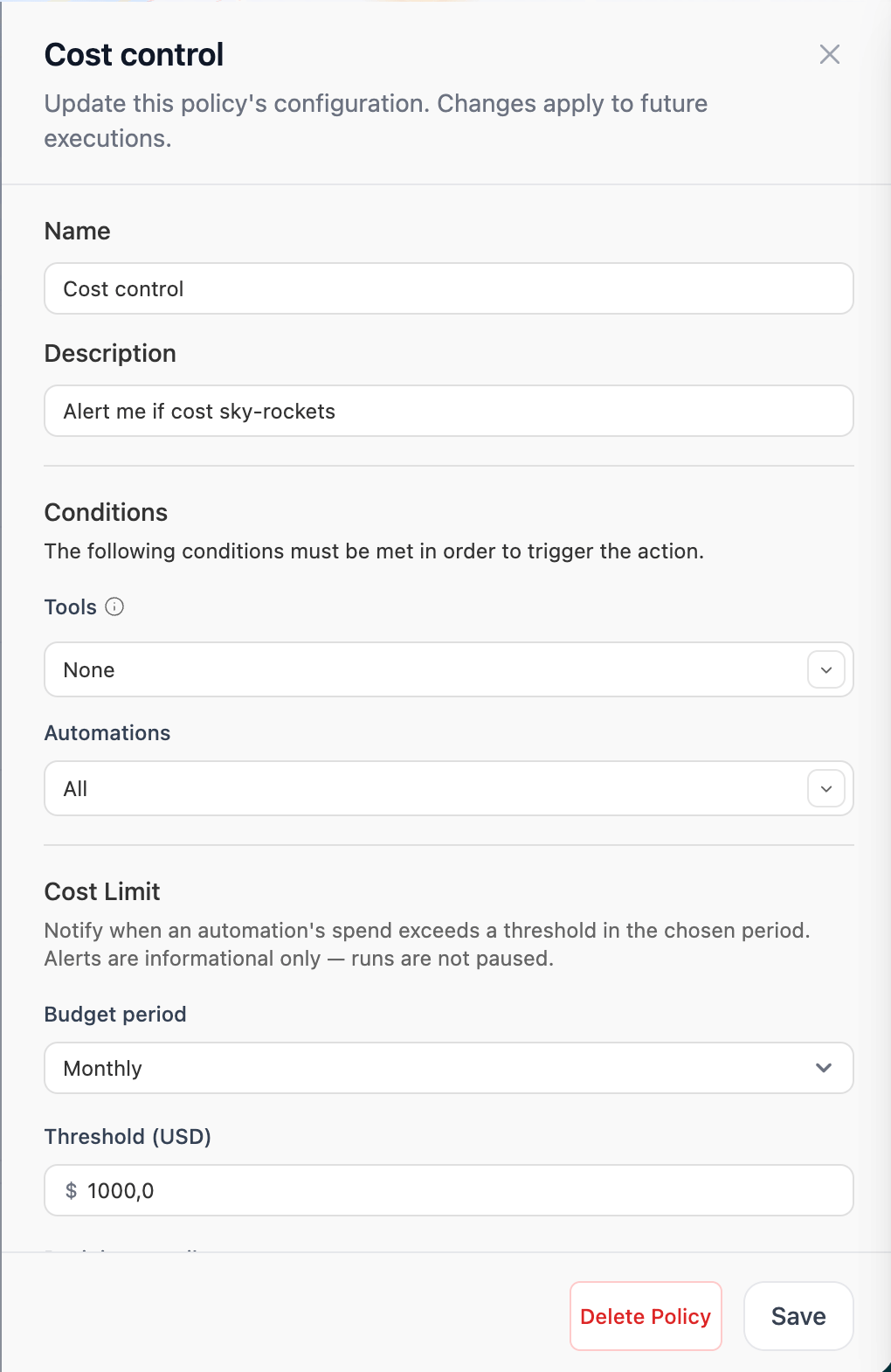
Give the policy a clear name (e.g. Mask PII (CC) or Monthly $100 budget) and a description explaining when it applies. Both show up on the policy card and in the Engaged Automations modal.
3
Pick the type
Choose PII Redaction or Cost Limit. The type determines which configuration section appears below the conditions. The type is fixed once the policy is created — to switch, create a new policy.
4
Set the conditions
Conditions decide which automations the policy engages with. Both are optional and use set-equality semantics:
- Tools — only automations whose tool set exactly matches the selected tools will engage. Picks from Studio apps, MCPs, OSS tools, and Tool Repository registry tools.
- Automations — only automations whose tag set exactly matches the selected tags will engage.
5
Configure the type-specific section
The editor shows the configuration for the type you picked — the PII Mask Type table for PII Redaction, or the budget fields for Cost Limit. See Policy types for what each field does.
6
Save
The policy applies to future executions of every engaged automation as soon as you save. No re-deploy is needed.
Engaged automations
Click Engaged N automations on any policy card to see exactly which deployments the policy is currently matching, along with each one’s last execution.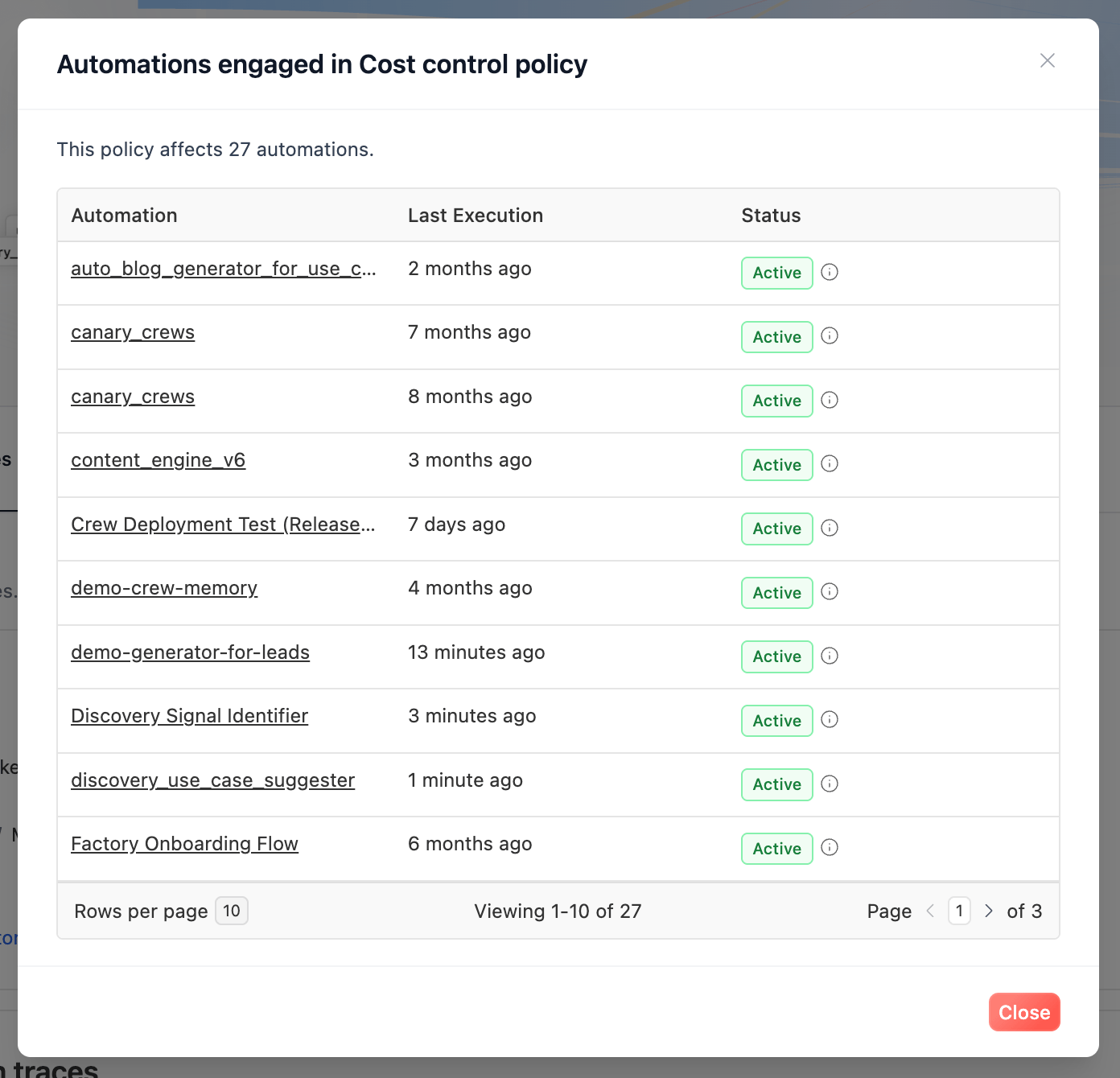
production tag isn’t accidentally matching a staging deployment.
Org-wide policies vs per-deployment settings
Both PII Redaction and Cost Limit can be configured in two places: org-wide as a Policy on this page, or per-deployment under that deployment’s Settings. When an enabled org-wide policy’s scope matches a deployment, the policy takes precedence over the deployment-owned setting while it’s attached.
Disable or detach the policy (or change its scope so it no longer matches) and the deployment falls back to its own per-deployment settings.
Prefer org-wide policies when you want to enforce a consistent policy across many deployments; reserve per-deployment configuration for one-off exceptions.
Related
Agent Control Plane — Overview
What ACP is, requirements, plan tiers, and RBAC.
Agent Control Plane — Monitoring
Monitor automations and LLM consumption across your fleet.
PII Redaction for Traces
Entity catalog, custom recognizers, and per-deployment configuration.
RBAC
Manage who can create or edit policies.
Need Help?
Contact our support team for help designing policies for your organization.