
CrewAI ships first-class support for Datadog: two log-ingestion paths, a JSON log schema designed for cheap indexing, and a ready-made operations dashboard you can import in under five minutes.
For vendor-neutral observability via any OTLP backend (Grafana, Honeycomb, your own collector), see OpenTelemetry Export.

Choose a path

CrewAI supports two log-ingestion paths to Datadog — both are first-class and produce the same structured facets that power the dashboard. Pick the one that fits your infrastructure.
The Datadog Agent runs alongside your CrewAI containers (typically as a DaemonSet on Kubernetes) and tails their stdout. With CREWAI_LOG_FORMAT=json set, each log event ships as a single billable line with structured attributes.Setup:
  1. Run the Datadog Agent next to your CrewAI containers — see Datadog’s deployment docs for Kubernetes, ECS, or VM setup. Enable log collection (logs_enabled: true) and container log collection (logs_config.container_collect_all: true).
  2. Set CREWAI_LOG_FORMAT=json as an automation environment variable in CrewAI AMP (open your automation → Settings → Environment Variables) so each log event is a single line instead of a multi-line traceback. AMP propagates the value to every container in the deployment (API + workers) — don’t set it on the container or host directly. See Enabling JSON output below for the AMP UI walkthrough and the log schema reference for the full field contract.
  3. Confirm logs arrive in Datadog Logs with the JSON fields parsed — see Verify ingestion.
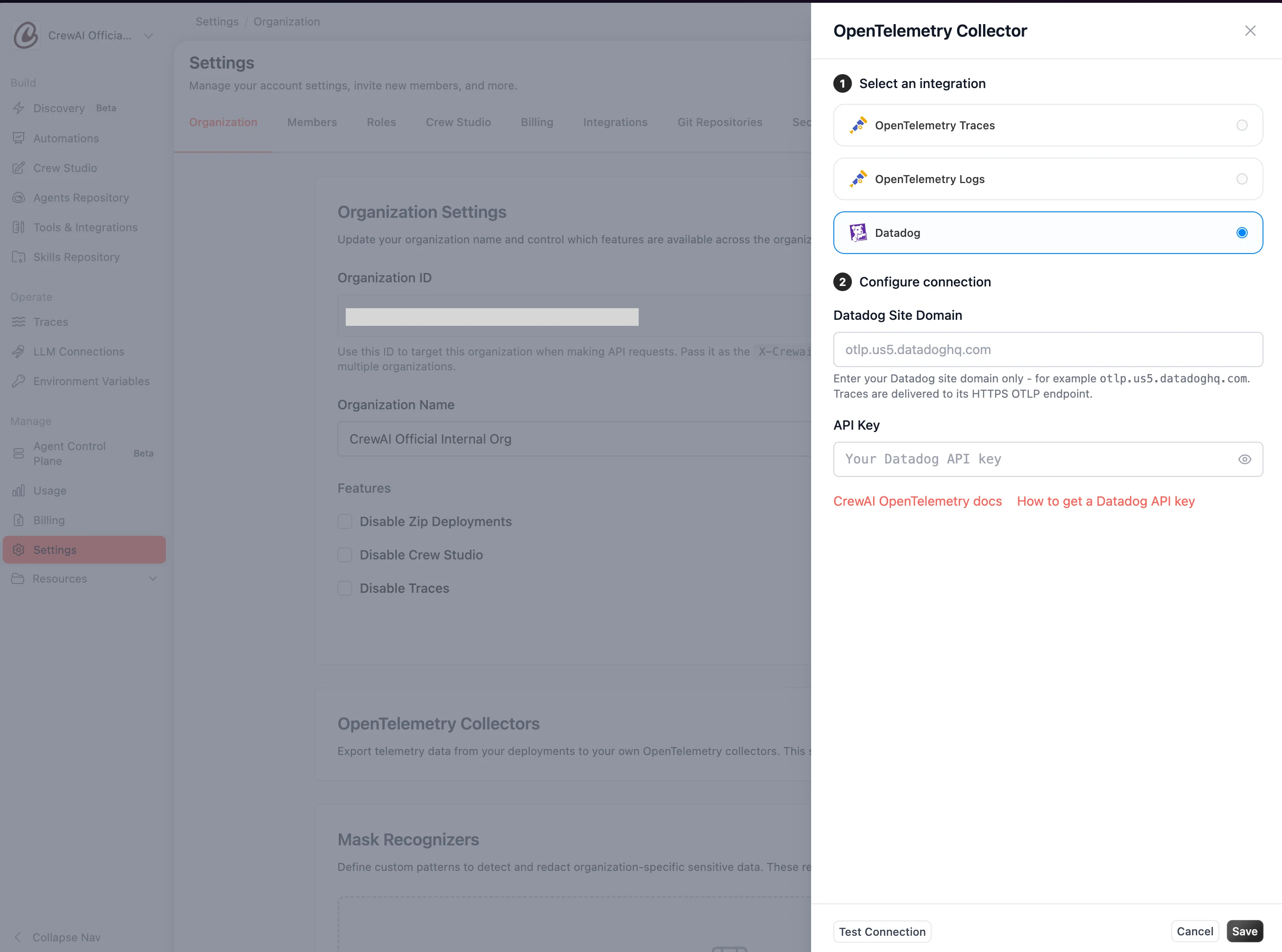
Pick this path if you already operate Datadog Agents (e.g. for infrastructure metrics), or your log volume makes per-event ingestion cost a real concern — collapsing tracebacks into single events keeps Agent ingestion cheap at scale.
Either path lands the same structured facets in Datadog (@automation_id, @kickoff_id, @execution_id, @automation_name, @crewai_version, @exception.type, @gen_ai.*), so the dashboard works identically with either choice.

Log schema reference

This schema applies to the Datadog Agent path — stdout JSON logs produced when CREWAI_LOG_FORMAT=json is set. Logs delivered via the Datadog OTLP intake use OpenTelemetry attribute names and may differ; see OpenTelemetry Export.
When CREWAI_LOG_FORMAT=json is set, every log event is emitted as a single JSON object per line to stdout, with internal newlines escaped. The format is plain JSON — Datadog parses it natively, and the same payload is also consumable by Splunk, Loki, Elasticsearch, and CloudWatch without custom log pipelines.

Why JSON output

Lower ingestion cost

Most managed log backends bill per event. A Python traceback in text format is counted as one event per line — 30+ events for a single error. JSON output collapses each traceback into a single event with the stack trace as an escaped string field.

Structured search

Search by @automation_id, @exception.type, @kickoff_id instead of grepping free-text. Build dashboards on typed facets without parser configuration.

APM ↔ logs correlation

Every event carries trace_id and span_id when fired inside a recording span, so backends auto-link logs to traces.

Stable contract

The schema field gates compatibility — within v1, fields are added but never renamed or removed.

Enabling JSON output

CREWAI_LOG_FORMAT=json must be set as an automation environment variable in CrewAI AMP — it is not a container, host, or Docker setting. Open your automation in AMP, click the Settings icon, and add the variable under the Environment Variables section. AMP applies the value to every container in the deployment (API + workers) on the next restart. See Update Your Crew for the full UI walkthrough with screenshots.
CREWAI_LOG_FORMAT=json
Restart the deployment to pick up the change. Every log line on stdout from that point on is a single JSON object.
The default value is text, which preserves the legacy human-readable line format byte-for-byte. Setting any value other than json falls back to text mode. There is no migration step — the variable is read at process start and the format switches immediately.

Example events

A single info-level log inside an active automation kickoff:
{
  "schema": "v1",
  "ts": "2026-06-17T16:14:23.482914Z",
  "level": "INFO",
  "logger": "crewai_enterprise.utilities.pii_redaction",
  "crewai_version": "1.14.7",
  "msg": "PII tracking state reset (engines preserved)",
  "automation_id": "12",
  "task_id": "0843a930-b306-464b-89c8-bfafa78cc711",
  "kickoff_id": "0843a930-b306-464b-89c8-bfafa78cc711",
  "execution_id": "0843a930-b306-464b-89c8-bfafa78cc711",
  "automation_name": "research_flow"
}
An error with a Python exception is collapsed into a single event with the traceback as a string:
{
  "schema": "v1",
  "ts": "2026-06-17T16:14:31.218450Z",
  "level": "ERROR",
  "logger": "api.tasks.flow_run_task",
  "crewai_version": "1.14.7",
  "msg": "Flow execution failed",
  "automation_id": "12",
  "kickoff_id": "0843a930-b306-464b-89c8-bfafa78cc711",
  "execution_id": "0843a930-b306-464b-89c8-bfafa78cc711",
  "automation_name": "research_flow",
  "exception": {
    "type": "ValueError",
    "message": "Topic cannot be empty",
    "stacktrace": "Traceback (most recent call last):\n  File \"/app/flow.py\", line 42, in summarize\n    ...\nValueError: Topic cannot be empty\n"
  }
}
The same error in legacy text mode would have produced ~25 separate log events (one per traceback line) — all of which the backend would bill and index individually.

Schema v1 fields

Within the v1 schema, fields are only added, never renamed or removed. New fields will appear as soon as a deployment is upgraded.
FieldTypeAlways presentSource
schemastringYesConstant "v1". Increment indicates a breaking schema change.
tsstring (ISO-8601 UTC, microseconds)YesRecord creation time, e.g. 2026-06-17T16:14:23.482914Z.
levelstringYesPython log level name: DEBUG / INFO / WARNING / ERROR / CRITICAL.
loggerstringYesDotted logger name, e.g. api.tasks.flow_run_task.
crewai_versionstringYes (when crewai package metadata is resolvable)Installed crewai package version, e.g. "1.14.7".
msgstringYesRendered log message (after %-formatting / {}-formatting).
automation_idstringWhen CREWAI_PLUS_ID env var is setNumeric deployment ID (AMP provisions this on every container).
task_idstringOn Celery worker logsCelery task UUID, or "no-task" for non-task contexts.
kickoff_idstringInside an automation kickoffUUID of the current kickoff.
execution_idstringInside an automation kickoffUUID of the current sub-execution. Equal to kickoff_id at the top level; differs for nested flow methods that spawn sub-executions.
automation_namestringInside an automation kickoffHuman-readable automation/flow name, e.g. "research_flow".
trace_idstring (32-hex)Inside a recording OpenTelemetry spanHex trace ID. Omitted when no span is active.
span_idstring (16-hex)Inside a recording OpenTelemetry spanHex span ID. Omitted when no span is active.
exceptionobjectWhen the log record has exc_info{type, message, stacktrace} — full traceback as a single escaped string.
Any additional extra={...} kwargs passed to a logger call appear as top-level JSON fields verbatim. Reserved field names above always win to keep the schema stable.

Stability promise

The schema field declares the contract. Within v1, CrewAI commits to:
  • Never removing a field that customers may have built queries or dashboards against.
  • Never renaming a field in place — renames happen via a schema bump (e.g. v2), with the old name kept as a deprecated alias for at least one release cycle.
  • Adding new fields at any time. Consumers should ignore unknown top-level keys.
When a v2 is introduced, both the schema field and the migration guide will be published in advance, and v1 will continue to be emitted for one release cycle so dashboards and queries have time to migrate.

Prerequisite: promote facets

Datadog auto-discovers fields the first time it sees them but doesn’t make them queryable in widgets until they’re promoted to facets. This is a one-time setup in your Datadog account.
1

Search for a CrewAI log

Open Logs Explorer and search service:crewai*. You should see at least one log event.
2

Promote each field

Click any log entry to open the right-hand details panel. For each field below, hover the field name → click the gear icon → Create facet.
  • automation_id, automation_name, execution_id, kickoff_id, task_id
  • crewai_version, model_id
  • exception.type, exception.message
Skip any field that already shows a star icon next to its name — that means it’s already a facet. The gen_ai.usage.input_tokens, gen_ai.usage.output_tokens, and gen_ai.request.model facets are typically promoted automatically by Datadog’s LLM Observability auto-discovery, but verify they exist before importing the dashboard.

Import the dashboard

1

Download the dashboard JSON

Save datadog_dashboard.json to your machine.
2

Open the import dialog in Datadog

Navigate to Dashboards → New Dashboard. Click the gear icon in the top right of the empty dashboard and select Import Dashboard JSON.
3

Paste or upload the JSON

Paste the contents of datadog_dashboard.json into the import dialog (or drag the file in). Click Import.Datadog creates the dashboard immediately and lands you on it. The first load may show empty widgets for a few seconds while queries execute against the time range.
Datadog’s Dashboard API accepts the same JSON via POST /api/v1/dashboard. Use it if you manage dashboards through Terraform, Pulumi, or CI.

What you get

The dashboard is organized into four sections plus a placeholder for a custom drill-down widget:
SectionWidgetsUseful for
HeaderTotal Executions · Error Rate (%) · Active Automations · CrewAI Versions in UseAt-a-glance health for the last hour. Error Rate is conditionally formatted (green ≤ 5%, yellow ≤ 10%, red > 10%).
ThroughputExecutions per Hour by Automation (top 10, stacked bars)Spotting traffic shifts, surfacing busy automations, validating that a rollout didn’t change baseline volume.
ErrorsErrors by Exception Type (top 5, stacked bars) · Top Exception Types by Count (toplist)Triaging failures — which exception types are spiking, which automations they’re hitting.
CostTotal Tokens per Hour by Model (input + output, stacked area)Tracking LLM token spend by model. Useful for catching cost regressions when an automation switches model or starts looping.
Drill-Down(empty placeholder)See Customization for adding a recent-errors log stream here.
Three template variables at the top of the dashboard re-scope every widget at once:
  • $automation — filter to a single automation by name.
  • $version — filter to a single crewai SDK version (useful for comparing pre- and post-upgrade behavior).
  • $service — filter to a specific Datadog service tag (useful when multiple CrewAI deployments share one Datadog account).

Verify ingestion

Open Logs Explorer and run a query that matches your ingestion path:
Search service:crewai* @schema:v1. You should see structured logs with the JSON fields parsed into Datadog facets. Pick a recent event and verify it has @automation_id, @kickoff_id, @execution_id, @crewai_version, and (when running inside a span) @trace_id / @span_id populated.If nothing appears, confirm CREWAI_LOG_FORMAT=json is set under your automation’s Environment Variables in AMP, the deployment was restarted after the change, and the Datadog Agent is tailing container stdout.

Customize

The dashboard ships with deliberate gaps so you can extend it without uninstalling and re-importing.

Add a Recent Errors log stream

The Drill-Down section is intentionally empty. Add a Log Stream widget to it for an inline view of recent failures:
  1. Edit the dashboard and click + Add Widgets inside the Drill-Down group.
  2. Drag in a Log Stream widget.
  3. Set the filter query to status:error $automation $version $service.
  4. Choose columns: @timestamp, @automation_name, @exception.type, @exception.message, @execution_id.
  5. Sort by most recent, limit to 25 entries.
Clicking any row jumps to Logs Explorer with the same filter pre-applied.

Add p95 latency

Logs don’t include execution duration by default. Two ways to add a latency widget:
  • From APM traces — if you also export OTLP traces to Datadog, add a Timeseries widget with data source Traces, query service:crewai*, aggregation p95 of @duration. Datadog APM auto-tracks span duration.
  • From metric extraction — extract a flow.duration_ms metric from logs via Datadog’s log-to-metric pipeline, then chart it like any other metric. Useful if you don’t run APM.

Re-scope to multiple deployments

The $service template variable defaults to * and will catch every CrewAI deployment in your Datadog account. Change the default to a specific service name in Configure → Template Variables if you want the dashboard to focus on one deployment by default.

Troubleshooting

SymptomLikely causeFix
All widgets show “No data”Facets aren’t promotedRe-do the Promote facets step. Datadog won’t query against an un-promoted field.
Error Rate widget shows NaNNo executions in the time windowEither no traffic, or @execution_id isn’t faceted. Expand the time range and re-check facets.
Throughput chart is flat at the same valueLogs aren’t reaching DatadogSearch service:crewai* in Logs Explorer. If nothing shows, verify the Datadog Agent is running (Agent path) or the OTel collector endpoint is correct (OTLP path).
crewai_version shows fewer values than expectedSome containers predate the structured-logs workThe crewai_version field was added alongside JSON output. Older deployments running text mode (or older AMP builds) won’t emit it. Upgrade those deployments to pick up the field. See the log schema reference for the full field contract.
Template variables don’t filter widgetsThe widget’s filter line doesn’t reference the template variableEdit the widget and confirm the search includes $automation $version $service.

Next steps

OpenTelemetry Export

Vendor-neutral observability for non-Datadog stacks (Grafana, Honeycomb, your own collector) — or as a Datadog complement when you want to fan out telemetry to multiple backends.

Datadog Log Search Syntax

Reference for customizing widget queries against the structured facets above.