
Rolling out now: Flows in Studio is being rolled out gradually during the week of July 20th, 2026. If you don’t see the Flows option in Studio yet, it hasn’t reached your organization — check back soon.
Overview
Studio now supports building Flows in addition to Crews. Flows are event-driven workflows where you control exactly which steps run, in what order, and under what conditions — while still delegating the intelligent work within each step to AI agents. To build a Flow, open Studio, describe your automation, and select Flows from the selector next to the prompt box.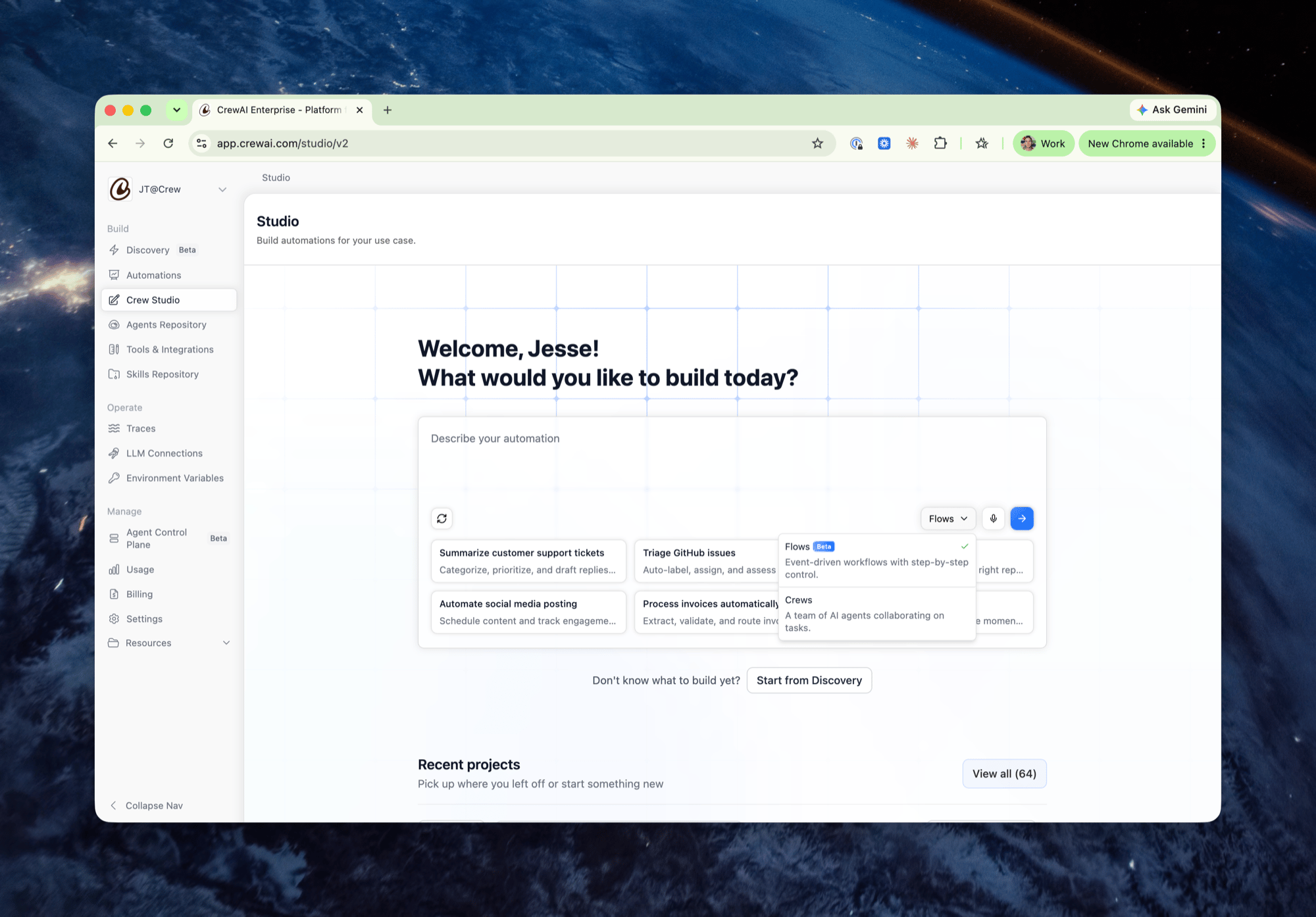
Why Flows?
Crews are great when you want a team of agents to collaborate autonomously toward a goal. But many real-world automations need more predictability: fetch this data first, then summarize it, then post the result — every time, in that order. Flows give you both:- Determinism where it matters: steps execute in a defined sequence with explicit branching, so runs are predictable, repeatable, and easy to debug.
- Intelligence where you need it: each step is powered by an agent (or an entire crew), so the work inside a step — summarizing, scoring, drafting, deciding — benefits from full LLM reasoning.
Building a Flow
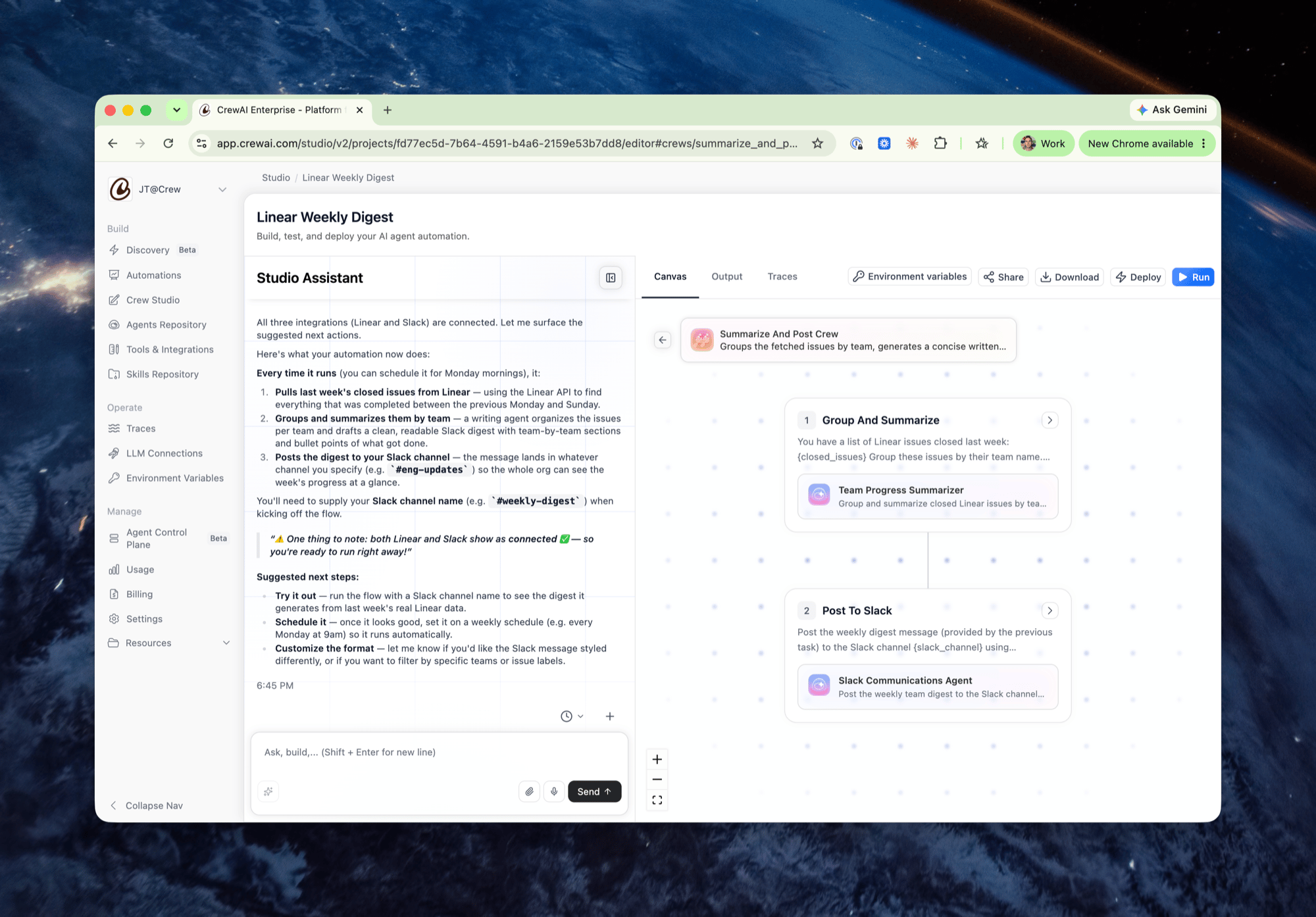
Describe what you want in natural language and the Studio Assistant designs the Flow for you — creating the steps, wiring them together, and configuring the agents and app integrations each step needs. The canvas on the right shows the resulting workflow as connected nodes, and you can keep iterating conversationally or edit any node directly.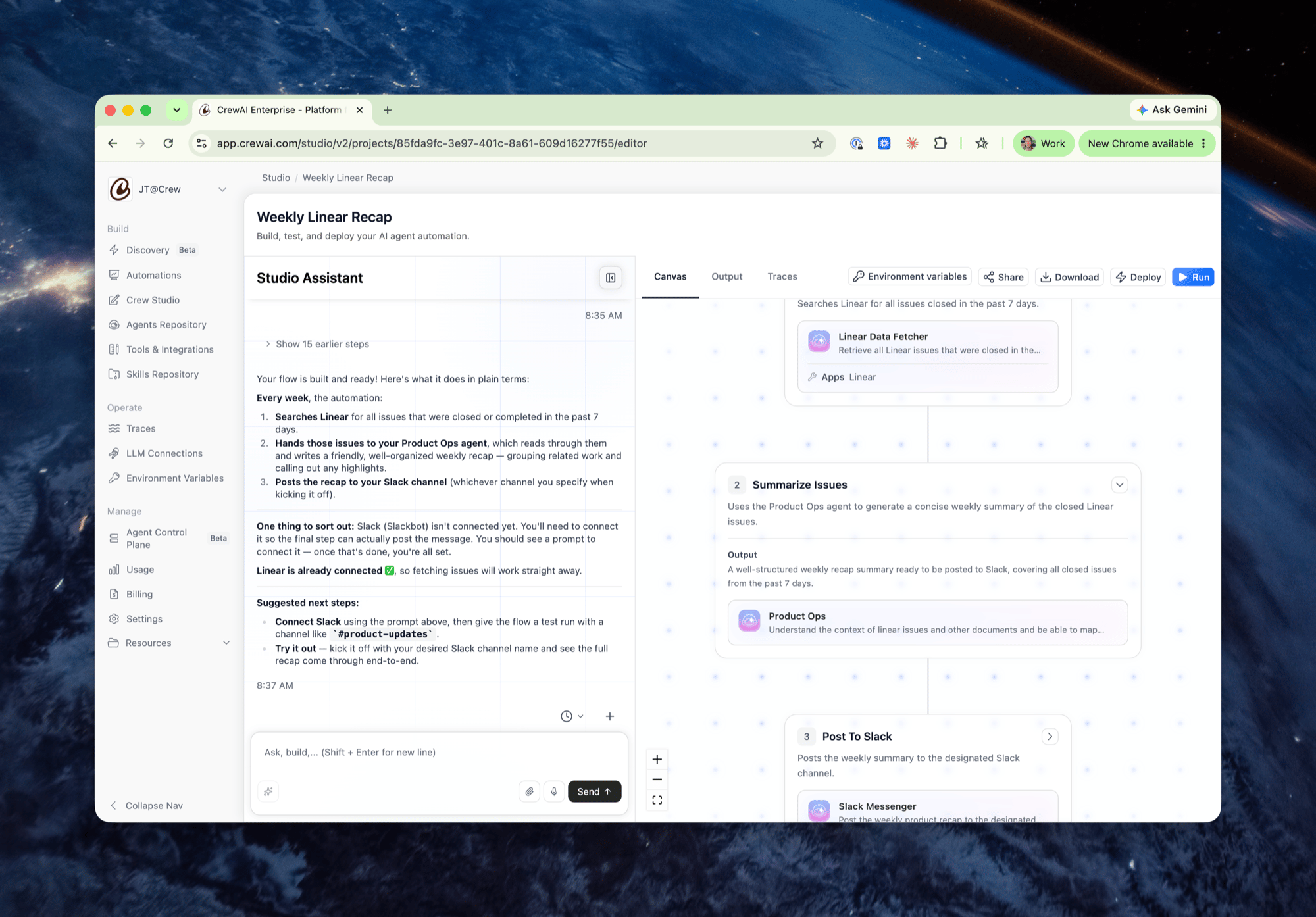
Node Types
Flows are composed from three core node types. Each node is a step in the workflow, and you can mix them freely.Single Agent
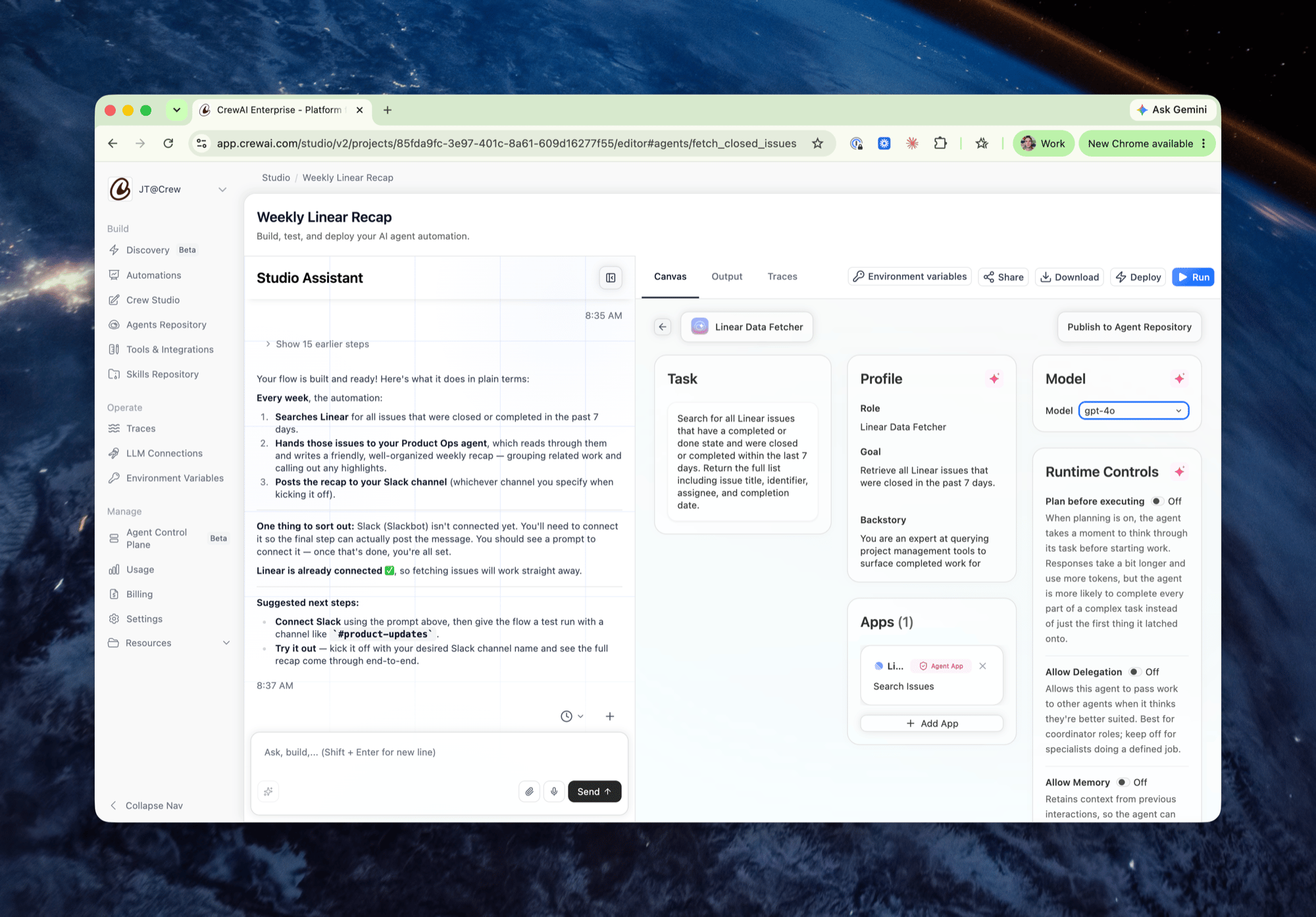
A Single Agent node runs one agent against one focused task — ideal for well-scoped steps like fetching data from an integration, transforming content, or posting a message. Clicking into an agent node opens its full configuration:- Task: what this step should accomplish and what output it should produce
- Profile: the agent’s role, goal, and backstory
- Model: which LLM powers the agent
- Apps: the integrations the agent can use (e.g. Linear, Slack, HubSpot)
- Runtime Controls: toggles for planning before executing, delegation, and memory
Crews
A Crew node embeds an entire crew — multiple agents collaborating across multiple tasks — as a single step in your Flow. Use it when a step is too rich for one agent, like grouping and summarizing data by team and then formatting the result for delivery.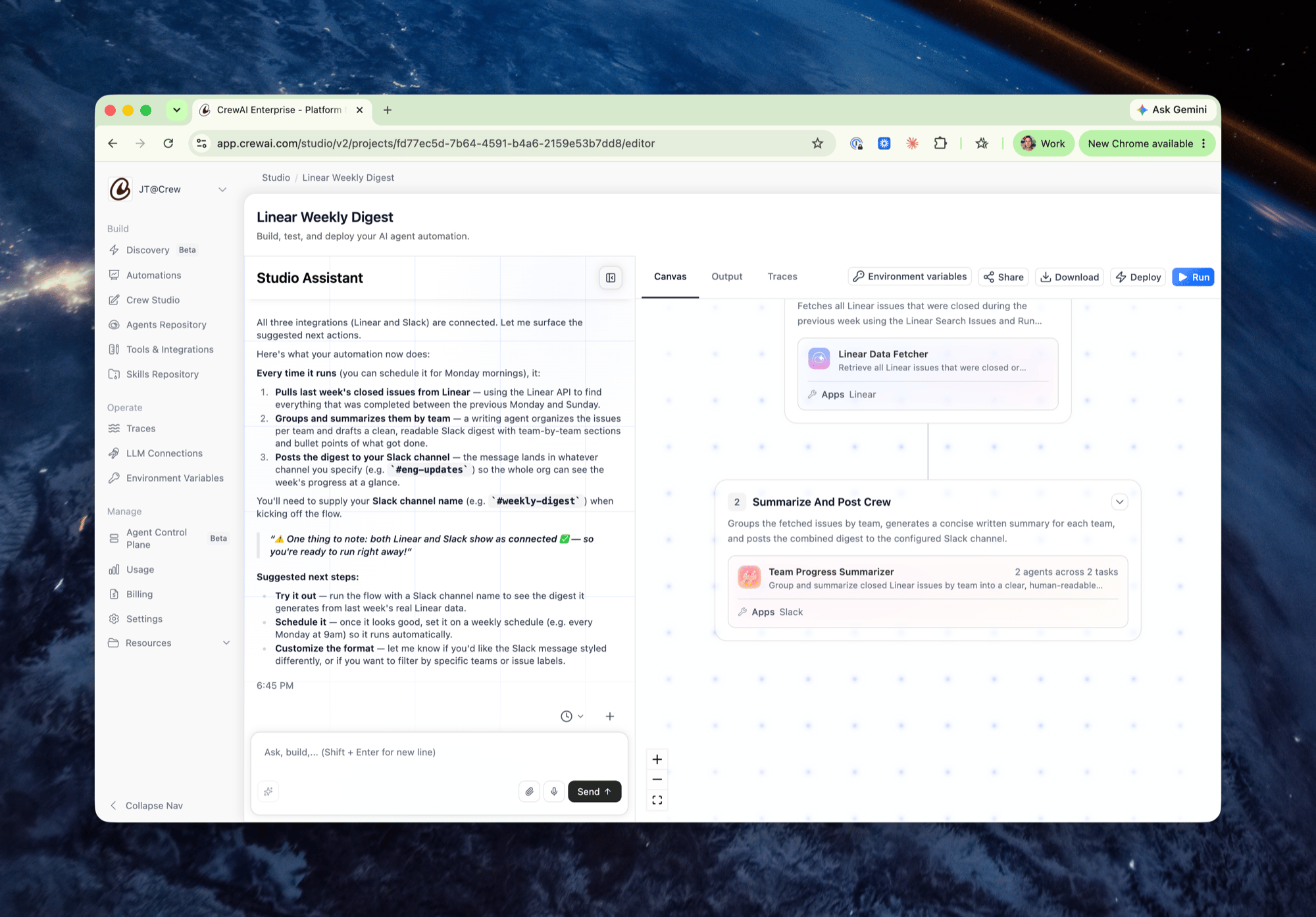
Router
A Router node branches the Flow based on conditions, so different outcomes take different paths. For example, a lead-routing Flow can score incoming leads and then route high-quality leads to a sales-assignment step while logging the rest for future nurturing.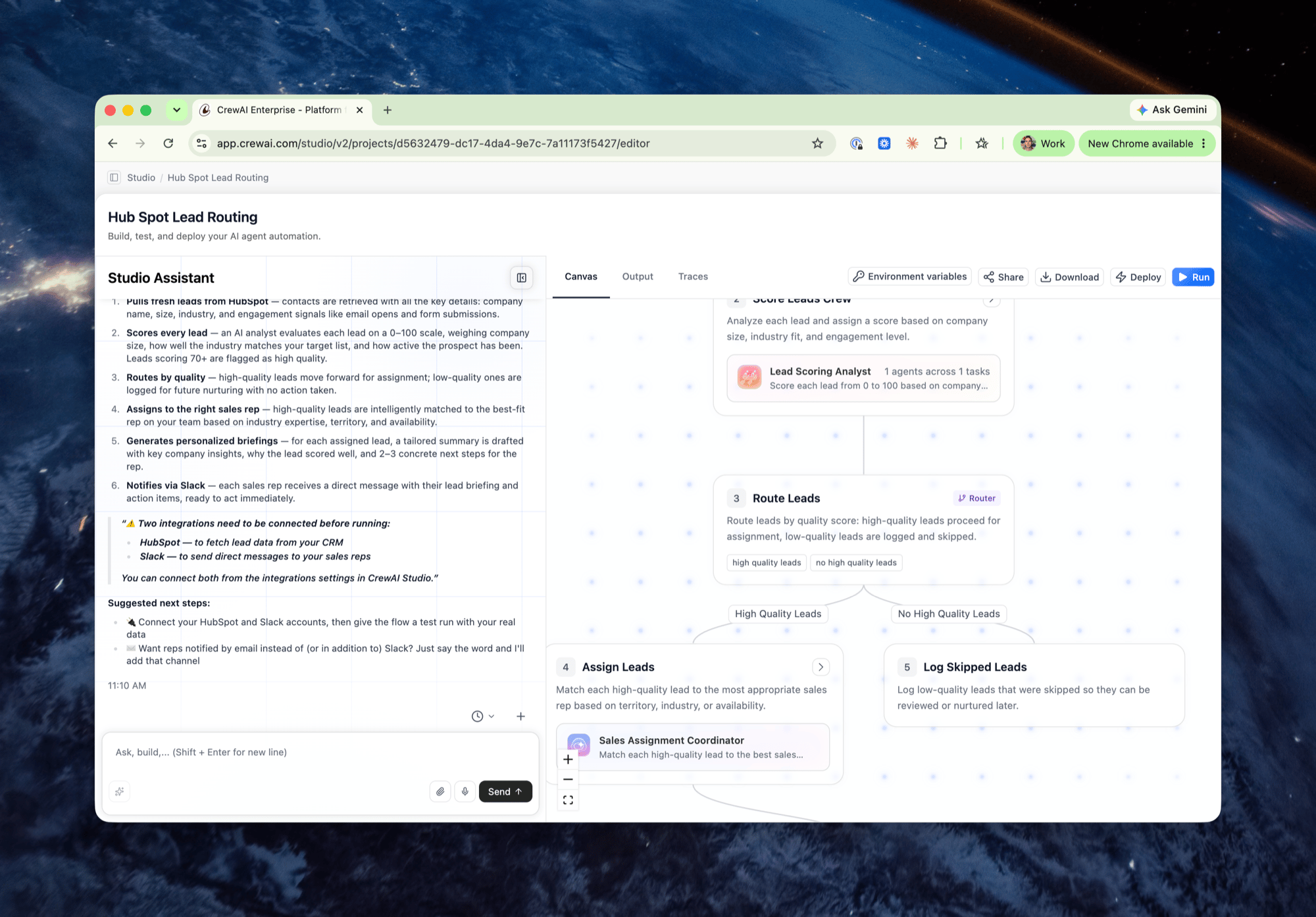
Agent Repository Sync
Agents you build in Flows don’t have to stay locked inside a single project. Every agent node includes a Publish to Agent Repository button that saves the agent — its role, goal, backstory, model, and configuration — to your organization’s Agent Repository. This works in both directions:- Publish: promote an agent you’ve refined in a Flow to the repository so other teams and projects can reuse it.
- Pull: bring an existing repository agent into a new Flow instead of rebuilding it from scratch.
Best Practices
- Reach for a Flow when the automation has a clear sequence or branching logic; reach for a Crew when the path to the goal is open-ended.
- Keep agent tasks focused — a Single Agent node with a tight task description is more reliable than one asked to do three things.
- Use Routers to handle every case explicitly, including the “do nothing” path (e.g. logging skipped leads), so runs are fully accounted for.
- Publish stable agents to the Agent Repository so your organization builds a shared library instead of parallel one-offs.
- Test with Run and inspect Traces before deploying to catch integration or prompt issues early.
Related
Crew Studio
Build Crews in Studio.
Agent Repositories
Share and reuse agents across your organization.
Flows Concepts
Learn how Flows work in the CrewAI framework.
Tools & Integrations
Connect the apps your agents use.