
Overview
In the CrewAI framework, aTask is a specific assignment completed by an Agent.
Tasks provide all necessary details for execution, such as a description, the agent responsible, required tools, and more, facilitating a wide range of action complexities.
Tasks within CrewAI can be collaborative, requiring multiple agents to work together. This is managed through the task properties and orchestrated by the Crew’s process, enhancing teamwork and efficiency.
CrewAI AMP includes a Visual Task Builder in Crew Studio that simplifies complex task creation and chaining. Design your task flows visually and test them in real-time without writing code.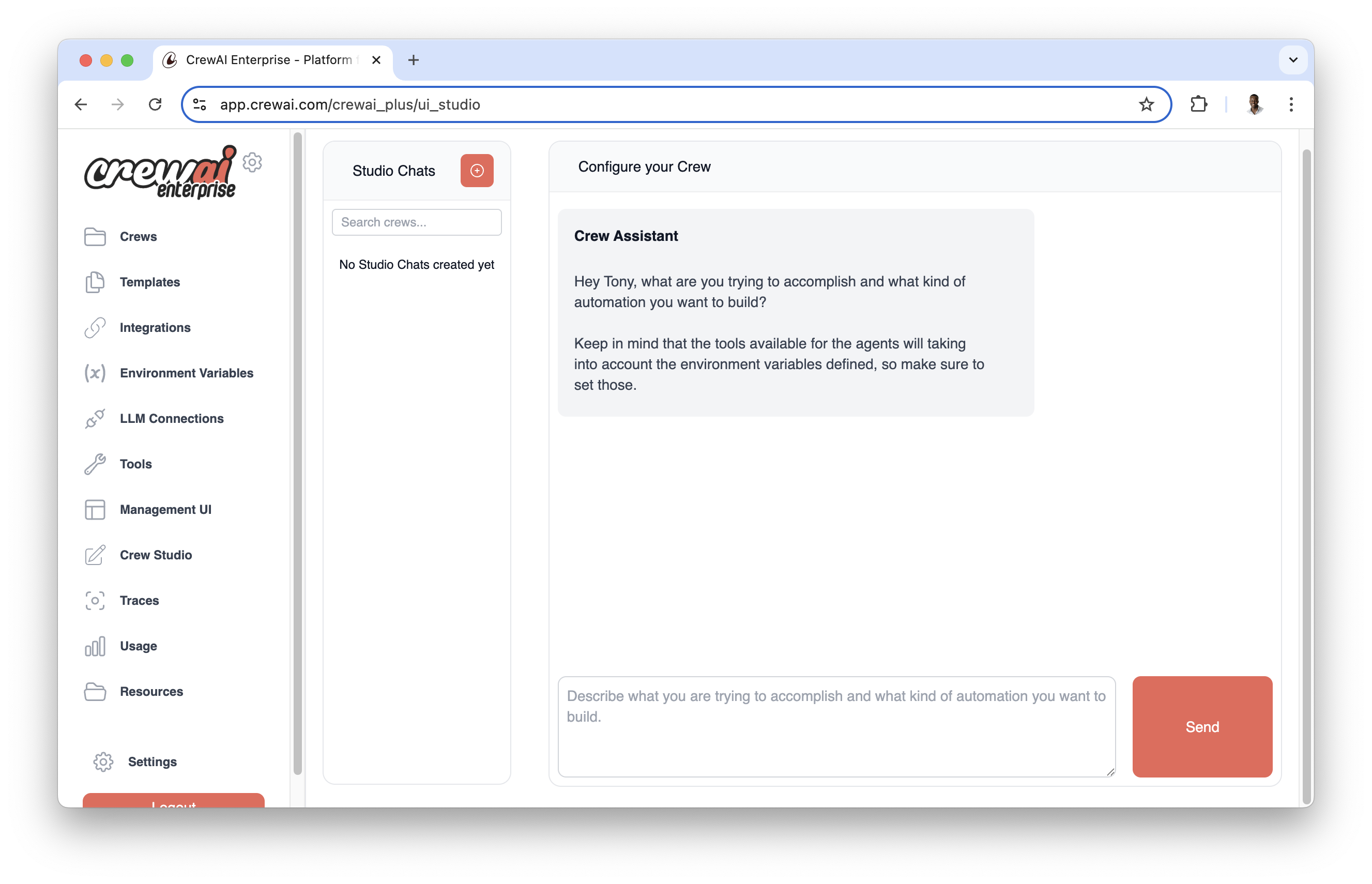
- Drag-and-drop task creation
- Visual task dependencies and flow
- Real-time testing and validation
- Easy sharing and collaboration
Task Execution Flow
Tasks can be executed in two ways:- Sequential: Tasks are executed in the order they are defined
- Hierarchical: Tasks are assigned to agents based on their roles and expertise
Code
Task Attributes
The task attribute
max_retries is deprecated and will be removed in v1.0.0.
Use guardrail_max_retries instead to control retry attempts when a guardrail
fails.Creating Tasks
There are two common ways to create tasks in CrewAI: using JSONC project configuration (recommended for new crews) or defining them directly in code.JSONC Configuration (Recommended)
New projects created withcrewai create crew <name> define tasks in crew.jsonc. The agents array points to files in agents/, and the tasks array defines the ordered work the crew should run.
After creating your CrewAI project as outlined in the Installation section, edit the generated crew.jsonc.
Use
{placeholder} values in task description, expected_output, and output_file. Put defaults in the top-level inputs object; crewai run prompts for any missing values.crew.jsonc with two ordered tasks:
crew.jsonc
description and expected_output. The agent value should match an agent name listed in agents. context is a list of prior task names; forward references are rejected so sequential context stays explicit.
Task entries support any public Task field. Common fields include name, agent, context, output_file, tools, human_input, async_execution, guardrail, guardrails, guardrail_max_retries, markdown, input_files, output_json, output_pydantic, response_model, and converter_cls. Use "type": "ConditionalTask" with a condition field for conditional tasks.
Classic YAML Configuration
Classic projects created withcrewai create crew <name> --classic use config/tasks.yaml and a @CrewBase class in crew.py. This remains supported for existing YAML projects or teams that prefer decorator-based Python wiring.
Direct Code Definition (Alternative)
Alternatively, you can define tasks directly in your code without using YAML configuration:task.py
Task Output
Understanding task outputs is crucial for building effective AI workflows. CrewAI provides a structured way to handle task results through theTaskOutput class, which supports multiple output formats and can be easily passed between tasks.
The output of a task in CrewAI framework is encapsulated within the TaskOutput class. This class provides a structured way to access results of a task, including various formats such as raw output, JSON, and Pydantic models.
By default, the TaskOutput will only include the raw output. A TaskOutput will only include the pydantic or json_dict output if the original Task object was configured with output_pydantic or output_json, respectively.
Task Output Attributes
Task Methods and Properties
Accessing Task Outputs
Once a task has been executed, its output can be accessed through theoutput attribute of the Task object. The TaskOutput class provides various ways to interact with and present this output.
Example
Code
Markdown Output Formatting
Themarkdown parameter enables automatic markdown formatting for task outputs. When set to True, the task will instruct the agent to format the final answer using proper Markdown syntax.
Using Markdown Formatting
Code
markdown=True, the agent will receive additional instructions to format the output using:
#for headers**text**for bold text*text*for italic text-or*for bullet points`code`for inline code
YAML Configuration with Markdown
tasks.yaml
Benefits of Markdown Output
- Consistent Formatting: Ensures all outputs follow proper markdown conventions
- Better Readability: Structured content with headers, lists, and emphasis
- Documentation Ready: Output can be directly used in documentation systems
- Cross-Platform Compatibility: Markdown is universally supported
The markdown formatting instructions are automatically added to the task
prompt when
markdown=True, so you don’t need to specify formatting
requirements in your task description.Task Dependencies and Context
Tasks can depend on the output of other tasks using thecontext attribute. For example:
Code
Task Guardrails
Task guardrails provide a way to validate and transform task outputs before they are passed to the next task. This feature helps ensure data quality and provides feedback to agents when their output doesn’t meet specific criteria. CrewAI supports two types of guardrails:- Function-based guardrails: Python functions with custom validation logic, giving you complete control over the validation process and ensuring reliable, deterministic results.
- LLM-based guardrails: String descriptions that use the agent’s LLM to validate outputs based on natural language criteria. These are ideal for complex or subjective validation requirements.
Function-Based Guardrails
To add a function-based guardrail to a task, provide a validation function through theguardrail parameter:
Code
LLM-Based Guardrails (String Descriptions)
Instead of writing custom validation functions, you can use string descriptions that leverage LLM-based validation. When you provide a string to theguardrail or guardrails parameter, CrewAI automatically creates an LLMGuardrail that uses the agent’s LLM to validate the output based on your description.
Requirements:
- The task must have an
agentassigned (the guardrail uses the agent’s LLM) - Provide a clear, descriptive string explaining the validation criteria
Code
- Complex validation logic that’s difficult to express programmatically
- Subjective criteria like tone, style, or quality assessments
- Natural language requirements that are easier to describe than code
- Analyze the task output against your description
- Return
(True, output)if the output complies with the criteria - Return
(False, feedback)with specific feedback if validation fails
Code
Multiple Guardrails
You can apply multiple guardrails to a task using theguardrails parameter. Multiple guardrails are executed sequentially, with each guardrail receiving the output from the previous one. This allows you to chain validation and transformation steps.
The guardrails parameter accepts:
- A list of guardrail functions or string descriptions
- A single guardrail function or string (same as
guardrail)
guardrails is provided, it takes precedence over guardrail. The guardrail parameter will be ignored when guardrails is set.
Code
validate_word_countchecks the word countvalidate_no_profanitychecks for inappropriate language (using the output from step 1)format_outputformats the final result (using the output from step 2)
guardrail_max_retries times.
Mixing function-based and LLM-based guardrails:
You can combine both function-based and string-based guardrails in the same list:
Code
Guardrail Function Requirements
-
Function Signature:
- Must accept exactly one parameter (the task output)
- Should return a tuple of
(bool, Any) - Type hints are recommended but optional
-
Return Values:
- On success: it returns a tuple of
(bool, Any). For example:(True, validated_result) - On Failure: it returns a tuple of
(bool, str). For example:(False, "Error message explain the failure")
- On success: it returns a tuple of
Error Handling Best Practices
- Structured Error Responses:
Code
-
Error Categories:
- Use specific error codes
- Include relevant context
- Provide actionable feedback
- Validation Chain:
Code
Handling Guardrail Results
When a guardrail returns(False, error):
- The error is sent back to the agent
- The agent attempts to fix the issue
- The process repeats until:
- The guardrail returns
(True, result) - Maximum retries are reached (
guardrail_max_retries)
- The guardrail returns
Code
Getting Structured Consistent Outputs from Tasks
It’s also important to note that the output of the final task of a crew
becomes the final output of the actual crew itself.
Using output_pydantic
The output_pydantic property allows you to define a Pydantic model that the task output should conform to. This ensures that the output is not only structured but also validated according to the Pydantic model.
Here’s an example demonstrating how to use output_pydantic:
Code
- A Pydantic model Blog is defined with title and content fields.
- The task task1 uses the output_pydantic property to specify that its output should conform to the Blog model.
- After executing the crew, you can access the structured output in multiple ways as shown.
Explanation of Accessing the Output
- Dictionary-Style Indexing: You can directly access the fields using result[“field_name”]. This works because the CrewOutput class implements the getitem method.
- Directly from Pydantic Model: Access the attributes directly from the result.pydantic object.
- Using to_dict() Method: Convert the output to a dictionary and access the fields.
- Printing the Entire Object: Simply print the result object to see the structured output.
Using output_json
The output_json property allows you to define the expected output in JSON format. This ensures that the task’s output is a valid JSON structure that can be easily parsed and used in your application.
Here’s an example demonstrating how to use output_json:
Code
- A Pydantic model Blog is defined with title and content fields, which is used to specify the structure of the JSON output.
- The task task1 uses the output_json property to indicate that it expects a JSON output conforming to the Blog model.
- After executing the crew, you can access the structured JSON output in two ways as shown.
Explanation of Accessing the Output
- Accessing Properties Using Dictionary-Style Indexing: You can access the fields directly using result[“field_name”]. This is possible because the CrewOutput class implements the getitem method, allowing you to treat the output like a dictionary. In this option, we’re retrieving the title and content from the result.
- Printing the Entire Blog Object: By printing result, you get the string representation of the CrewOutput object. Since the str method is implemented to return the JSON output, this will display the entire output as a formatted string representing the Blog object.
By using output_pydantic or output_json, you ensure that your tasks produce outputs in a consistent and structured format, making it easier to process and utilize the data within your application or across multiple tasks.
Integrating Tools with Tasks
Leverage tools from the CrewAI Toolkit and LangChain Tools for enhanced task performance and agent interaction.Creating a Task with Tools
Code
Referring to Other Tasks
In CrewAI, the output of one task is automatically relayed into the next one, but you can specifically define what tasks’ output, including multiple, should be used as context for another task. This is useful when you have a task that depends on the output of another task that is not performed immediately after it. This is done through thecontext attribute of the task:
Code
Asynchronous Execution
You can define a task to be executed asynchronously. This means that the crew will not wait for it to be completed to continue with the next task. This is useful for tasks that take a long time to be completed, or that are not crucial for the next tasks to be performed. You can then use thecontext attribute to define in a future task that it should wait for the output of the asynchronous task to be completed.
Code
Callback Mechanism
The callback function is executed after the task is completed, allowing for actions or notifications to be triggered based on the task’s outcome.Code
Accessing a Specific Task Output
Once a crew finishes running, you can access the output of a specific task by using theoutput attribute of the task object:
Code
Tool Override Mechanism
Specifying tools in a task allows for dynamic adaptation of agent capabilities, emphasizing CrewAI’s flexibility.Error Handling and Validation Mechanisms
While creating and executing tasks, certain validation mechanisms are in place to ensure the robustness and reliability of task attributes. These include but are not limited to:- Ensuring only one output type is set per task to maintain clear output expectations.
- Preventing the manual assignment of the
idattribute to uphold the integrity of the unique identifier system.
Creating Directories when Saving Files
Thecreate_directory parameter controls whether CrewAI should automatically create directories when saving task outputs to files. This feature is particularly useful for organizing outputs and ensuring that file paths are correctly structured, especially when working with complex project hierarchies.
Default Behavior
By default,create_directory=True, which means CrewAI will automatically create any missing directories in the output file path:
Code
Disabling Directory Creation
If you want to prevent automatic directory creation and ensure that the directory already exists, setcreate_directory=False:
Code
YAML Configuration
You can also configure this behavior in your YAML task definitions:tasks.yaml
Use Cases
Automatic Directory Creation (create_directory=True):
- Development and prototyping environments
- Dynamic report generation with date-based folders
- Automated workflows where directory structure may vary
- Multi-tenant applications with user-specific folders
create_directory=False):
- Production environments with strict file system controls
- Security-sensitive applications where directories must be pre-configured
- Systems with specific permission requirements
- Compliance environments where directory creation is audited
Error Handling
Whencreate_directory=False and the directory doesn’t exist, CrewAI will raise a RuntimeError:
Code