
Overview
Connect your CrewAI agents directly to your Snowflake data through the Snowflake-managed MCP server. The Snowflake integration lets your agents query structured data with Cortex Analyst, search unstructured data with Cortex Search, and run governed SQL against your warehouses — all without writing or hosting any connector code. Under the hood, the Snowflake integration is a managed wrapper around CrewAI’s Custom MCP Server support. Snowflake exposes its Cortex AI capabilities through a Model Context Protocol endpoint, and CrewAI connects to it securely on your behalf. Any tool you expose on the Snowflake side — Cortex Analyst, Cortex Search, SQL execution, Cortex Agents, or your own custom tools — becomes available to your crews.Key Capabilities
Cortex Analyst
Ask questions in natural language and let Cortex Analyst generate and run SQL against your structured data using rich semantic models.
Cortex Search
Retrieve relevant unstructured data for RAG and knowledge workflows with Cortex Search, Snowflake’s fully managed search service.
SQL Execution
Run governed SQL queries directly against your Snowflake warehouses, with configurable read-only mode, timeouts, and warehouse selection.
Prerequisites
Before using the Snowflake integration, ensure you have:- A CrewAI AMP account with an active subscription
- A Snowflake account with access to Cortex AI features
- A Snowflake-managed MCP server configured with the tools you want to expose
- Appropriate Snowflake privileges (USAGE/SELECT) on the MCP server and its underlying objects
Setting Up the Snowflake MCP Server
The Snowflake-managed MCP server runs inside your Snowflake account and defines which tools are available to external clients like CrewAI. Create one with theCREATE MCP SERVER command, listing the Cortex Search services, Cortex Analyst semantic views, and SQL tools you want to expose.
The MCP endpoint follows the format
https://<account_URL>/api/v2/databases/{database}/schemas/{schema}/mcp-servers/{name}. CrewAI builds this URL automatically from the Account URL, Database, Schema, and MCP Server Name you provide when configuring the integration.Connecting Snowflake in CrewAI AMP
1
Open Tools & Integrations
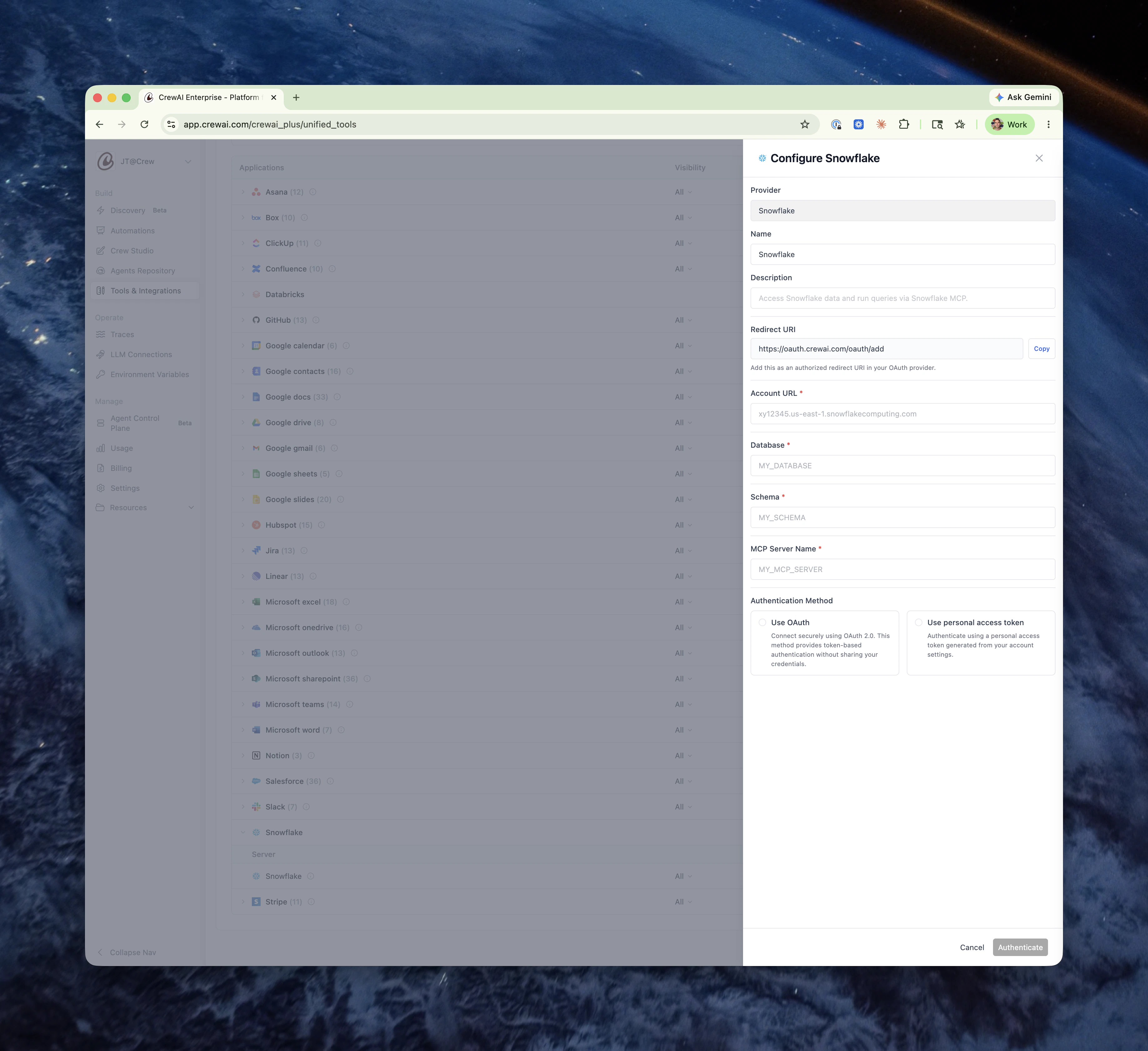
Navigate to Tools & Integrations in the left sidebar of CrewAI AMP, find Snowflake in the list of applications, and open its configuration panel.
2
Provide connection details
Fill in the connection fields that CrewAI uses to reach your Snowflake MCP server:
3
Choose an authentication method
Select how CrewAI authenticates to Snowflake. OAuth is recommended.
- Use OAuth — Connect securely using OAuth 2.0 for token-based authentication without sharing your credentials. CrewAI handles the full authorization flow and refreshes tokens automatically. Copy the Redirect URI shown in the form (
https://oauth.crewai.com/oauth/add) and register it as an authorized redirect URI in your Snowflake OAuth security integration. - Use personal access token — Authenticate using a programmatic access token generated from your Snowflake account settings. Assign a least-privileged role to the token to limit exposure.
4
Authenticate
Click Authenticate. For OAuth, you’ll be redirected to Snowflake to authorize access. Once authenticated, the Snowflake server appears in your Connections and its tools become available to your crews.
Using Snowflake Tools in Your Crews
Once connected, the tools your MCP server exposes appear alongside built-in connections on the Tools & Integrations page. You can:- Assign tools to agents in your crews just like any other CrewAI tool.
- Manage visibility to control which team members can use the connection.
- Edit or remove the connection at any time from the Connections list.
Learn More
Snowflake-managed MCP Server
Official Snowflake documentation for creating and governing the MCP server.
Custom MCP Servers in CrewAI
Learn how CrewAI connects to any MCP server, the foundation the Snowflake integration builds on.
Need Help?
Contact our support team for assistance with the Snowflake integration or troubleshooting.