
Prerequisites
CrewAI AMP Account
You need an active CrewAI AMP account.
MCP Server URL
The URL of the MCP server you want to connect. The server must be accessible from the internet and support Streamable HTTP transport.
Adding a Custom MCP Server
1
Open Tools & Integrations
Navigate to Tools & Integrations in the left sidebar of CrewAI AMP, then select the Connections tab.
2
Start adding a Custom MCP Server
Click the Add Custom MCP Server button. A dialog will appear with the configuration form.
3
Fill in the basic information
- Name (required): A descriptive name for your MCP server (e.g., “My Internal Tools Server”).
- Description: An optional summary of what this MCP server provides.
- Server URL (required): The full URL to your MCP server endpoint (e.g.,
https://my-server.example.com/mcp).
4
Choose an authentication method
Select one of the three available authentication methods based on how your MCP server is secured. See the sections below for details on each method.
5
Add custom headers (optional)
If your MCP server requires additional headers on every request (e.g., tenant identifiers or routing headers), click + Add Header and provide the header name and value. You can add multiple custom headers.
6
Create the connection
Click Create MCP Server to save the connection. Your custom MCP server will now appear in the Connections list and its tools will be available for use in your crews.
Authentication Methods
No Authentication
Choose this option when your MCP server is publicly accessible and does not require any credentials. This is common for open-source or internal servers running behind a VPN.Authentication Token
Use this method when your MCP server is protected by an API key or bearer token.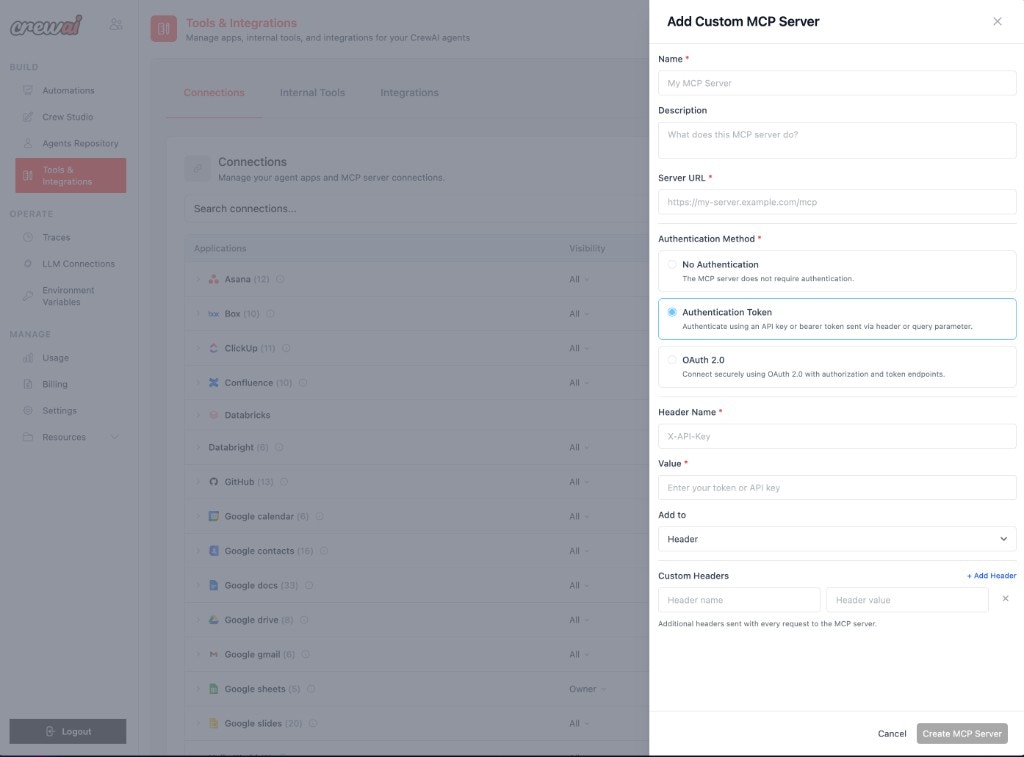
OAuth 2.0
Use this method for MCP servers that require OAuth 2.0 authorization. CrewAI will handle the full OAuth flow, including token refresh.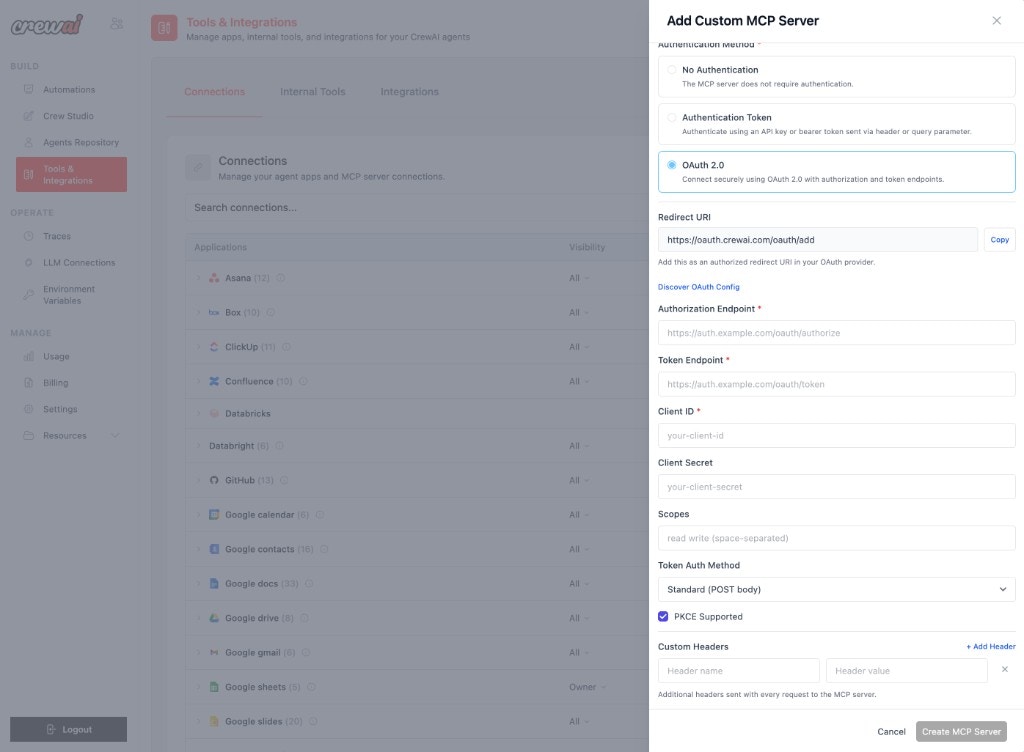
Discover OAuth Config: If your OAuth provider supports OpenID Connect Discovery, click the Discover OAuth Config link to auto-populate the authorization and token endpoints from the provider’s
/.well-known/openid-configuration URL.Setting Up OAuth 2.0 Step by Step
1
Register the redirect URI
Copy the Redirect URI shown in the form and add it as an authorized redirect URI in your OAuth provider’s application settings.
2
Enter endpoints and credentials
Fill in the Authorization Endpoint, Token Endpoint, Client ID, and optionally the Client Secret and Scopes.
3
Configure token exchange method
Select the appropriate Token Auth Method. Most providers use the default Standard (POST body). Some older providers require Basic Auth (header).
4
Enable PKCE (recommended)
Check PKCE Supported if your provider supports it. PKCE adds an extra layer of security to the authorization code flow and is recommended for all new integrations.
5
Create and authorize
Click Create MCP Server. You will be redirected to your OAuth provider to authorize access. Once authorized, CrewAI will store the tokens and automatically refresh them as needed.
Using Your Custom MCP Server
Once connected, your custom MCP server’s tools appear alongside built-in connections on the Tools & Integrations page. You can:- Assign tools to agents in your crews just like any other CrewAI tool.
- Manage visibility to control which team members can use the server.
- Edit or remove the connection at any time from the Connections list.
Need Help?
Contact our support team for assistance with custom MCP server configuration or troubleshooting.